Showing posts with label utilities. Show all posts

Friday, 19 August 2016

It's a material world

This post is another post in my Blender Addon series. We still have some distance to climb to get to the goal of LI estimation in Blender. The Chinese have an old proverb, often attributed to Confucious that states something to the effect "the man that moves the mountain starts by carrying away small stones." With a nod to Confucious, we will carry away an armful or two of rubble today and use those pebbles to make a useful tool that was on my wishlist, a "material usage report".

Materials matter

We know from a previous blog that the Mesh that we see is not how SL sees it, instead, it expects it decomposed into a mesh per material. It is in no small part this requirement that leads to the expectation that each LOD model will share the same material set. If you try to upload LOD models that have mismatched materials you will get an error such as this
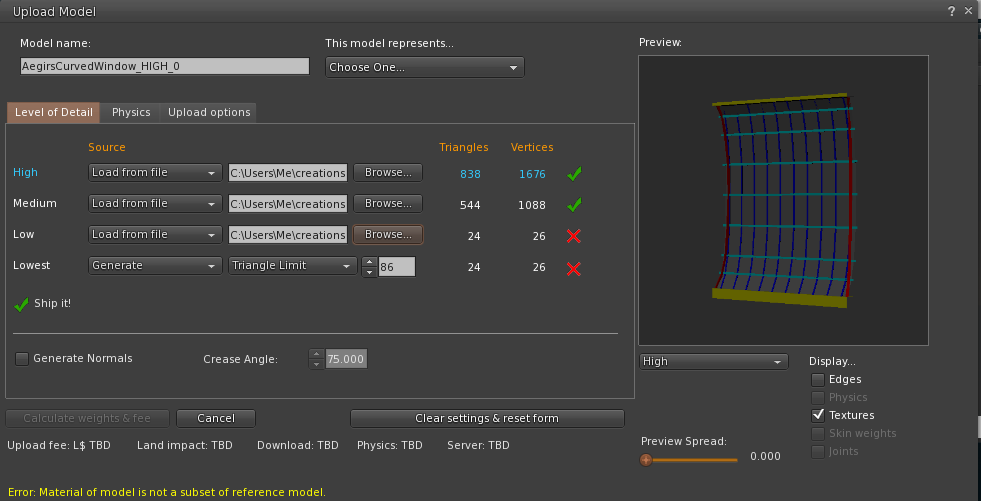
The nasty yellow "Error: Material of model is not a subset of reference model" is the bane of a Second Life Modellers life, if you are anything like me, that is. Typically this occurs for one of two reasons; the first is that you've just messed up the materials, and you have a mismatch, that is easy to spot (it may or may not be easy to fix). The second reason is the one that, for me at least, is far more common. You've diligently optimised your model, removing all the internal faces that won;t ever be seen at a distance, simplified those pillars and struts and somewhere along the way you ended up with a material that is in the model but has no actual mesh associated with it. 

Looking in Blender will show the full list of materials that were used, you'll need to go through each in turn to find out which of them is actually empty. 

Gien that our grand tour will require us to cross this small hill on the way to the summit we may as well deal with it. We need to parse our object into materials before we can go much further, so let's count the polygons in each LOD as we go.

In Blender the mesh data has a list of polygons and each entry in this has a pointer to a material index the refers to the "material_slot" of the parent object. We can, therefore, write a short set of routines that will process the models that we have, building on the previous work that allows us to associate objects together as the LOD models and produce a composite report on the materials used by our LOD models and any errors that we find.
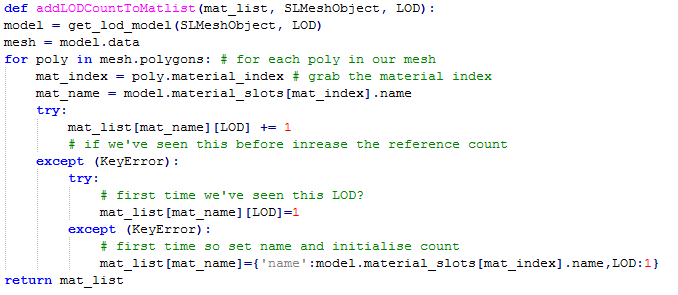

In my first stab at this, I used the material_index to build the map, and it worked perfectly because the model I was testing against had the correct material slots. When I tested with the object used to create the error above the report showed an issue, but it was not the right issue.

The curved window section above will be featured in another post, one on mesh optimisation and the lower LOD models are not complete because they (deliberately) do not have the same materials, but of course they do all have index 0. It is not the index that counts it is the material inside and given that the materials are kept per object, we need to use the name, not the index.

Having corrected that bug, we now find that we can reproduce the error from the SL uploader in Blender but provide more information to the user at the same time.
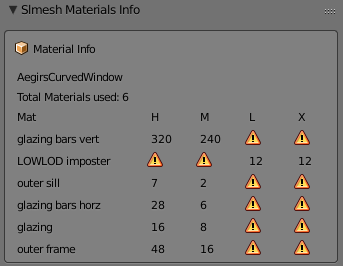
As you can see here, we are still able to show that the High and Medium LOD models are using the same subset of materials but that the LOW and LOWEST are not, what is more, the LOW and LOWEST are in fact using a completely disjoint set of materials, as evidenced by the warning sign in the high and medium LODs.

This is a contrived example to some extent, this is a work in progress and I knew it would not upload but hopefully you can see how the tool has saved a round trip of export and upload. 

Another example

We have used a dome object I have built in the past in previous examples and so I will illustrate how the tool can quickly pin point a material issue and save time.
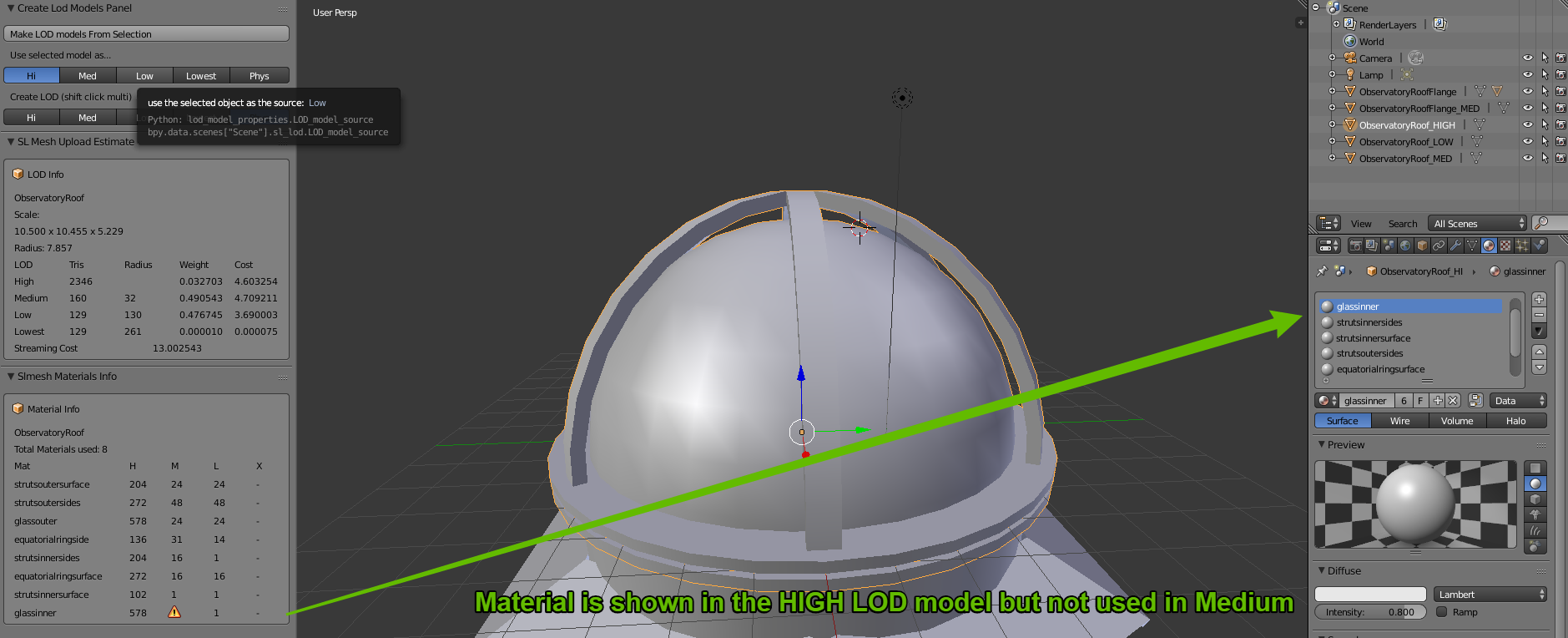
The first image shows the HIGH LOD model and the report is flagging up an issue with the "glassinner" material in the MEDIUM LOD.
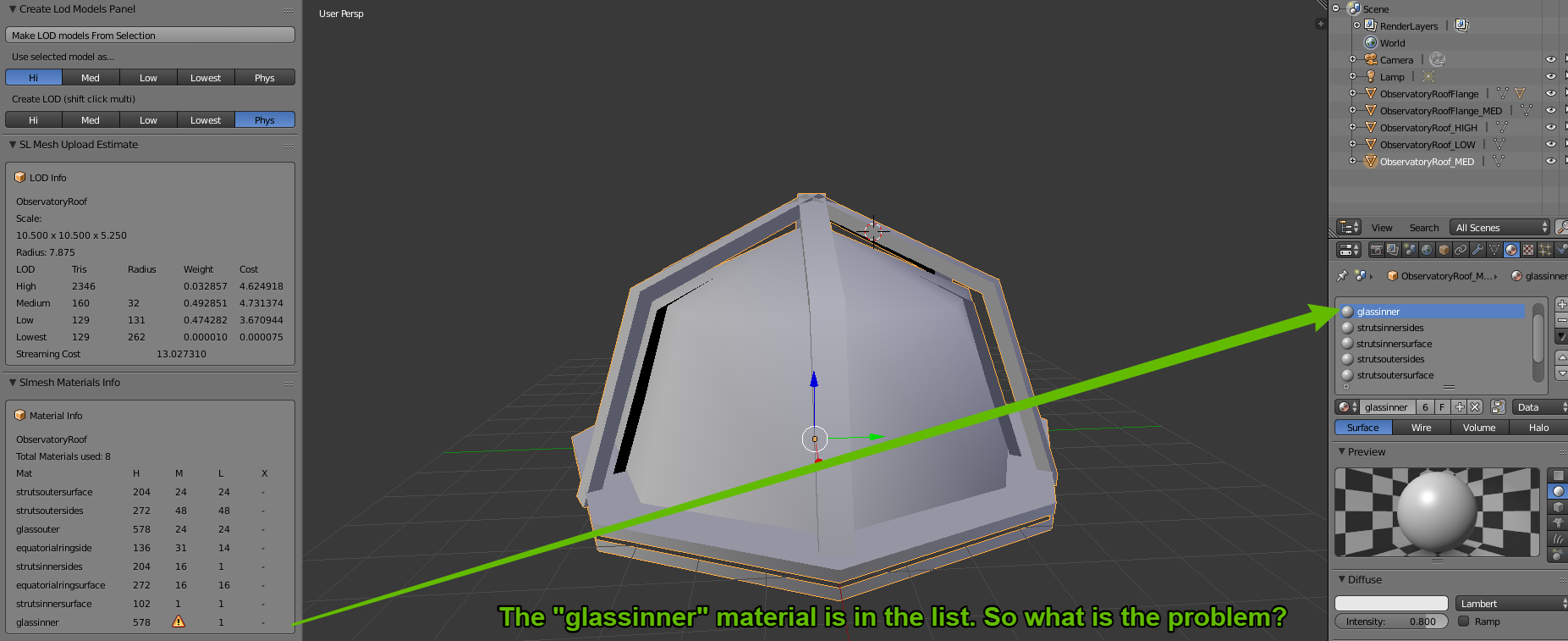
Now we see that the MEDIUM model has the slot in place, so it is not simply that the material is not there. We have to drop into edit mode to uncover the truth. While we were deleting all the interior mesh that would never be visible from in the MEDIUM LOD range, we accidentally deleted all of the  "glassinner" and so it is no longer matching the parent. So we can now assign a single triangle in the mesh to this material and it will fix the problem.
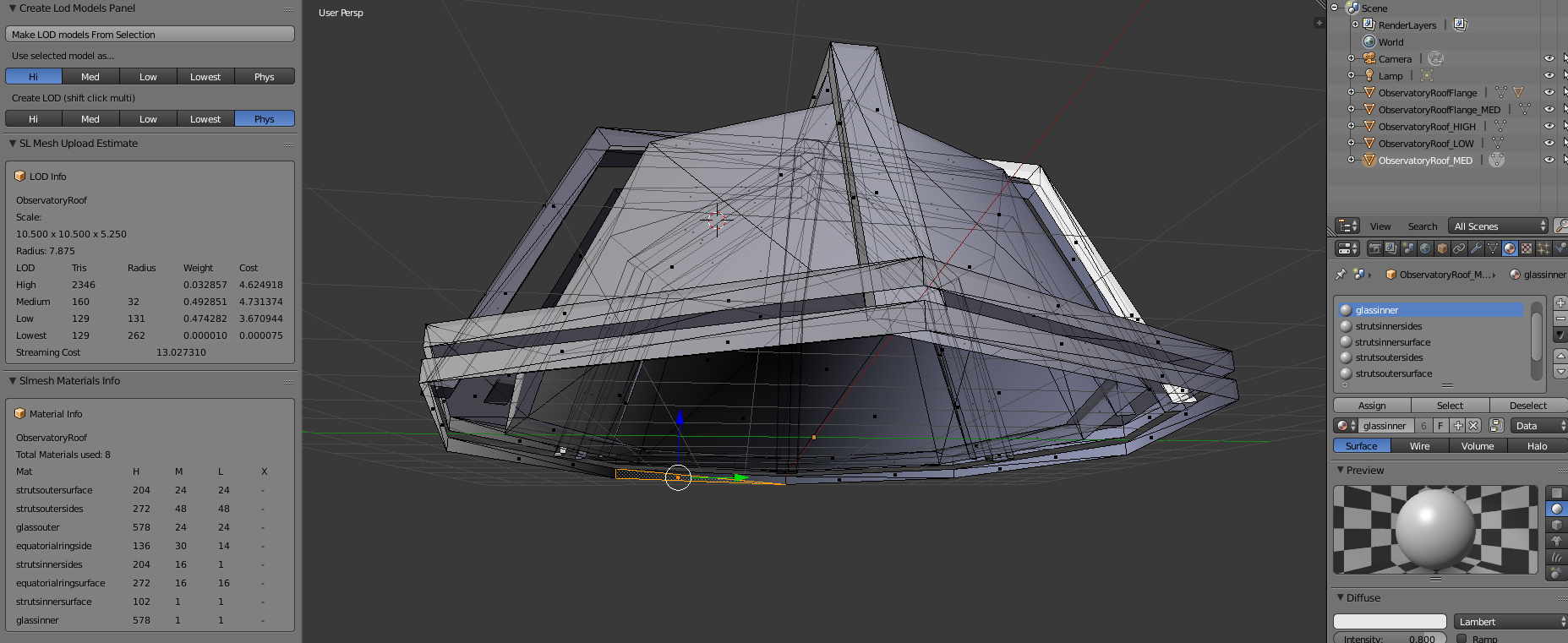
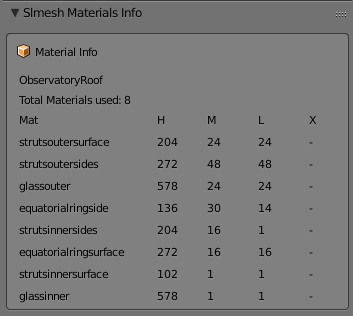

One last note, in the final report here on the left,  the LOWEST LOD (denoted as X due to the L for LOW) is marked as - and not an error.

This is because we have not defined a LOWEST LOD model in Blender and it therefore assumes that you will be generating this upon upload and it does not need to worry about it. Therefore, exporting the HIGH, MED and LOW objects and then importing them wil not give us any material based errors.
I think that these tools are now starting to offer value and if a few people are interested in becoming beta testers for me then I would love to hear from you. Contact me inworld or through Google+ from this blog.

As always, if you find this interesting or think it would be useful to someone please +1, share, whatever else. A typical blog entry here gets about 20 hits, I'd love to reach more people but only if what I am writing is useful.

Love
Beq
x


Wednesday, 29 June 2016

Meshing about in Blender with Python

Part 2 of my adventures in Blender add-on land

A short one tonight as I've been busy with RL annoyances.

In the last post on my Blender Journey when I stopped I had built my first ever Blender add-on, taught it to iterate through a list of selected items and for each one create duplicates that we can then mangle into lower LOD models.

At the moment the results of running it are as follows:-
In this example the High LOD model is shown first (it is two separate objects), the "Make LOD models from selection" button has been clicked, and the associated operator (blender term for function) has been executed. The result as shown is that the first five layers are populated. Layer zero (top left) has the original model, which we are treating as the High LOD. Next to this are layers one and two which contain lower detail models for Medium and Low. In this example, I had already made the models and by naming them appropriately, I allowed the script to find them and move them to the correct layer and not have it generate ones I did not need. Layer three contains a copy of the original renamed to Original_LOWEST and finally layer four includes another copy Original_PHYS. 

This immediately raises a few points. If I have a model for LOW then perhaps I should derive LOWEST and PHYS from that one. Perhaps I do not want a physics model at all.

Also, while my workflow would normally be to start with the High and work down there is often a good case for starting with the Medium and establishing the basic shape before adding smaller details to the High model. So maybe I should allow this too.

The image below is a quick mockup (from Gliffy) of how it could look


Each LOD/model has a row with a set of radio buttons to determine which LOD the selected object(s) should be treated as, and a set of tick boxes for the ones we want to be generated/found and moved. In this example the selected objects would be renamed with an _MED suffix. A copy would be made and any suffix removed, another copy with the _LOW suffix would be made. 

Having thought about the inheriting of LOD models I think it makes the most sense to do this automatically, so I will update the code to derive LOW from MED, LOWEST from LOW. This automatically means that models will inherit from pre-existing LOD models.

Updating the panel

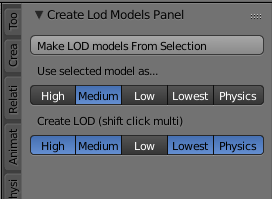
It looks as if my visualisation was somewhat fanciful as Blender does not easily support radio buttons as a set (know better? Please tell me). It does, however, have an enumeration property type and this gives us a similar functionality.

Adding a properties class is a bit fiddly, or at least it seemed so. The result is quite simple, but the journey to getting there took me on more messy routes.
Here, however, is the final UI, which allows me to specify the source model and the targets to create from it.

import bpy

class LODModelProperties(bpy.types.PropertyGroup):
# This is how you make a static enum prop for the scene
    enum_items = (('0','High',''),('1','Medium',''), ('2','Low',''), ('3','Lowest',''), ('4','Physics',''))
    LOD_model_source = bpy.props.EnumProperty(items = enum_items)
    LOD_model_target = bpy.props.EnumProperty(
            name = "LOD Models required",
            description = "LOD Models to be generated",
            items = enum_items,
            options = {"ENUM_FLAG"}
        )    
        
bpy.utils.register_class(LODModelProperties)    

bpy.types.Scene.sl_lod = bpy.props.PointerProperty(type=LODModelProperties)

class CreateLODModelsPanel(bpy.types.Panel):
    bl_idname = "create_lod_models_panel"
    bl_label = "Create Lod Models Panel"
    bl_space_type = "VIEW_3D"
    bl_region_type = "TOOLS"
    bl_category = "SecondLife"
   
    def draw(self, context):
        layout = self.layout
        layout.operator("my_operator.make_lodmodels_from_selection")
        layout.label("Use selected model as...")
        layout.prop(bpy.context.scene.sl_lod, 'LOD_model_source', expand=True)
        layout.label("Create LOD (shift click multi)")
        layout.prop(bpy.context.scene.sl_lod, 'LOD_model_target', expand=True)


Right now, however, there is no linkage between them. In an ideal world, the target models would automatically exclude the source LOD selected.

We can achieve this using the get/set methods. It took me quite a while to figure this out.
It appears that the property itself is read only. You cannot apply a remove('1') to the set that represents that LODS to generate for example.
The solution is to maintain a parallel data value as a map entry on the property class.

def getter(self):
    return self['value']
    
def setter(self, value):
    if (value & self['src_value']):
        value ^= self['src_value']
    self['value'] = value
    

def source_getter(self):
    return self['src_value']
    
def source_setter(self, value):
    self['src_value'] = value
    if (value & self['src_value']):
        self['value'] ^= value

Now when we select a value in the source radio control, it is automatically removed from the target set if it is set, likewise trying to set it in the target will fail if it corresponds to the source.

That's it for tonight.
Next step is to use out new properties to control the generation because at the moment it still generates all 5 models.


Monday, 13 June 2016

Adventures in Blender scripting - automating workflow

Blender Addons

I have decided to have a go at writing a Blender Addon to ease my Second Life Mesh development workflow.

I will approach this in a modular manner hoping to learn a lot about both Python and Blender as I go.

When I build in Blender I tend to either start with a Mesh Studio model and perhaps generate a series of LODs using that tool or create a High LOD model and duplicate it for the lower LODs. Having duplicated them I can then set about reducing the complexity.

The first task is to create a simple operator to take a selected objects and create duplicates that will be used as the Medium, Low, Lowest and perhaps even Physics meshes.