Showing posts with label viewer. Show all posts

Monday, 21 March 2022

How to use the new Firestorm Performance Floater and Autotune feature

New Firestorm, new features 

The latest Firestorm release has a new feature (albeit one that I still consider experimental), the "performance floater". In recent blog posts, I've explained  why I created this, in earlier blogs and most recently, in "Upgraders of the lost ARC" I explained a bit about what it does. This post is all about "How to use Performance Floater". 

Bundled with the Performance Floater is the Autotune FPS feature, I'll also explain how this works, and how to best avoid getting yourself into a muddle with it.
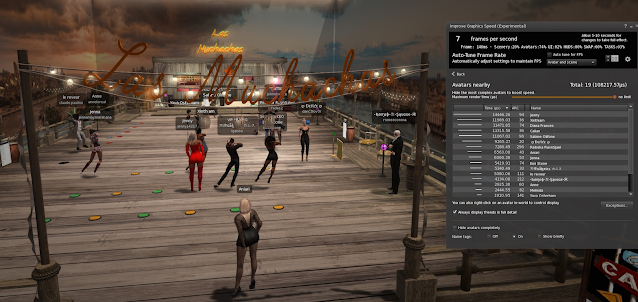


For a more concise, and probably more readable summary of these two features please refer to Inara Pey's excellent write up, and you can also click on the '?' icon at the top of the floater to go immediately to the Firestorm wiki page, dedicated to this function, which will be maintained and updated as the feature develops.

What does Performance Floater do for me?

The Performance Floater shows you in real-time what parts of the scene are taking the most time, and slowing down your graphics. In particular, this first release focuses on avatars and allows you to see which avatars are truly lagging you; it also allows you to examine your own attachments to see how they perform.

Ok so what about Autotune?

Autotune is a first look at our attempt to allow the viewer to automatically manage some of your settings to attempt to give you the performance level that you request and keep you there.
Keep in mind, that 

Performance Floater best practices.

Initially, we will ignore Autotune and look instead at manual tuning and how the performance floater can help us.

Given that the motivation behind this feature was to highlight the damage that segmented bodies have done to SL performance, it will come as no surprise that it is most useful when applied in crowd scenes. I wanted to allow a finer-grained tuning experience that would allow you to enjoy a crowded club, or similar scene without having to de-render everyone and completely ruin the atmosphere. So how do we go about this?

Step by step - A quick guide.

Step 1 - Open the performance floater.

The first thing we need is information, it is hard to know whether you've improved anything without measuring before and after. To open the performance floater, we have a few options

Look for the "Improve graphics speed..." menu entry on either the World menu or on the Advanced->Performance tools menu.
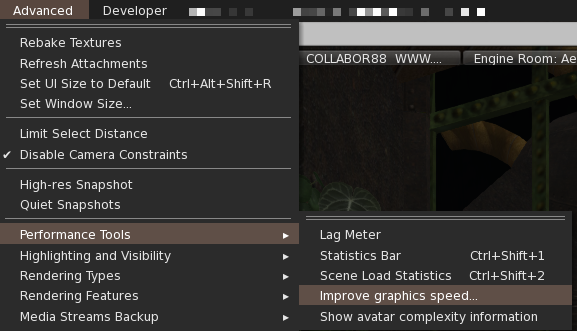


It can also be added to your toolbars for quick access. Look for the Gauge icon on the tool pallette

Step 2 - Review the summary stats

We start with the overview panel, which tells us what our current Frame rate (Frames Per Second, aka FPS) is. You may also see a warning such as "User limited FPS" or "In Background", these are intended as a reminder that you are not getting the full potential because you have either deliberately limited the FPS or are "tabbed out" on another screen/application such as Discord/Chrome.

Below this is the summary data and the first clue as to what is happening to our FPS.


A more complete explanation of these numbers can be found here. What we can find here though is the first hint about what we need to do. 

Best practice - Start with the largest number as this is where the biggest gains can be made

If scenery is the largest number then we might start to think about whether our draw distance is too high etc. However, if we are sightseeing or taking photos, then we might want the scenery to be in full glorious detail. If we are shopping we want to see the goods on display, but don't really need to see the displays far away. Think about what it is you are aiming for. 

Most of the time you will find that either scenery, avatars or both are high. But occasionally we can find that the other numbers are worth a quick look. If the UI is more than a few percent then consider closing down unwanted chat windows and inventory, etc. If the "HUDs" costs are high, then you should remove as many as you can or simply hide them all using the "show HUD attachments" option on the Avatar menu (alt-shift-H on Windows). 

Best practice for general FPS health - Close unnecessary UI and remove (not minimise) HUDs 

Keep your UI windows closed and remove HUDs when not using them (the "favourite wearbles" feature is amazingly useful for this.)

"The scenery is killing my FPS"

In this first release, the amount of fine-grained tuning for scenery is very limited (I was focused more on the Lagatar problem). However, we provide quick access to a couple of the controls that make the biggest difference. 

Clicking on the graphics settings panel in the floater will take you to a subset of the preferences found on the main preferences panel. Here we can make wholesale changes to the quality of our graphics using the "Quality vs speed" slider, or tweak individual parameters. The main features exposed here are Draw distance, shadows and water reflections. Draw distance and water can be changed dynamically, and you can watch the impact. Changing shadows is slightly more disruptive as the viewer has to change how things are drawn and this causes a "pause", especially on slower machines.

Best practices for scenes - dumb down the water, shrink the draw distance, remove the shadows. 

In general, we want to keep the visual quality as high as we can, whilst still being able to move about. With this in mind, you need to pick and choose between the options.  Since EEP, water reflections and refraction have been a terrible burden (a fix is coming from LL, but it is not here yet), You can still have decent looking water, without reflections. Of course, the most obvious (but frequently overlooked is Draw Distance. It's simple really, drawing more "stuff" takes longer. reducing the draw distance shrinks the number of things that need to be considered by the viewer. In a club or shopping mall, shrink the DD to 64m and you'll be more nimble.

Water - If you are not near water, or do not care about water reflections then you should almost certainly switch water reflections to "None; opaque" this gives a big FPS boost whilst still leaving the water looking reasonably nice. For the biggest win, you can always fully disable water on the advanced menu, under rendering types. But don't forget to turn it back on.
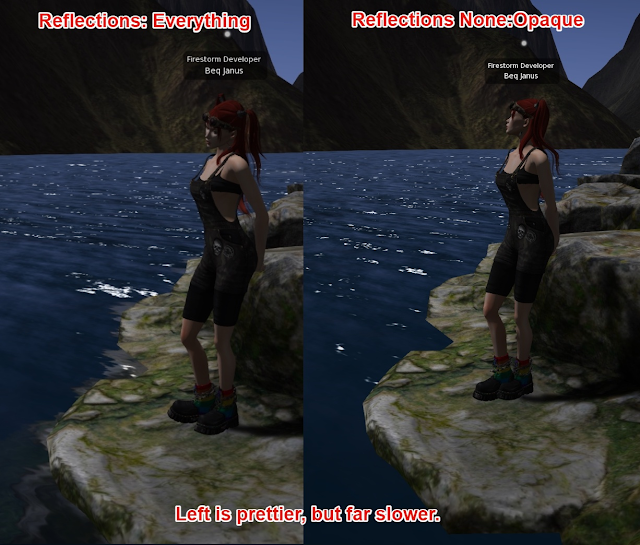


Shadows -  The most visually disruptive change. I love to have shadows in a scene, but shadows will typically more than halve your FPS. So if you really need that extra boost then foregoing shadows is a good choice. Use the shadows setting on the floater or in the preferences. this is very useful if you are at a shopping event or club where the shadows are probably not that important.

Things not to do (probably) - Killing Advanced lighting - ALM. 
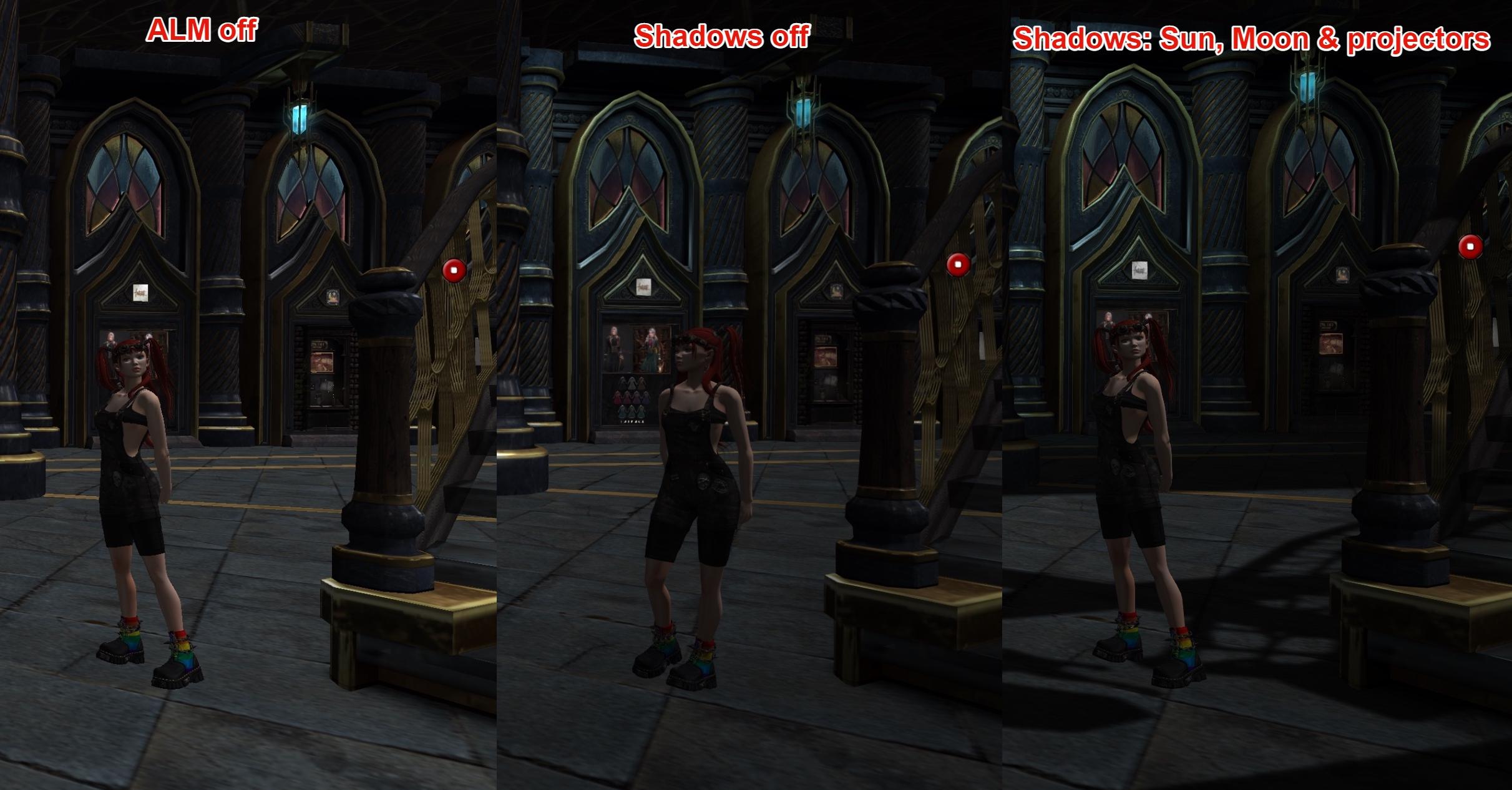


A lot of people automatically reach for the advanced lighting kill switch in preferences and proclaim the amazing boost they get. For many people, that boost is dominated by the fact that the shadows get disabled too. try turning off shadows only first. Disabling ALM can have detrimental effects on some machines as it prevents some GPU use, loading more on the CPU. However, if you are on a poor network, then ALM will reduce the bandwidth as materials will not be fetched.

OK, so that's the global scene dealt with.

"OMG the avatars are killing me"

When the statistics suggest that avatars are a significant amount of the frame time we can look at the avatars nearby and decide what to do.  It does not take many segmented avatar abominations to totally destroy your performance. Modern BOM bodies without the "alpha cuts" or segments are far more performant. So how can separate the good from the bad?
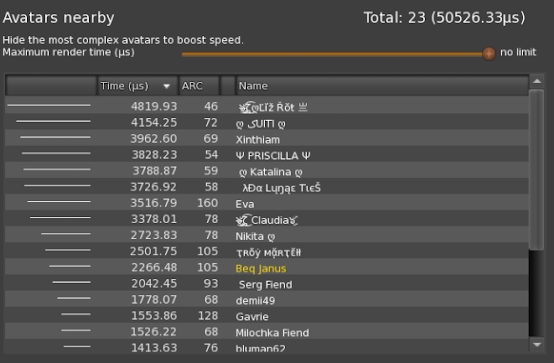


The bar graph on the left of this screen gives a quick visual indication of the costs. This was my favourite feature of the original Linden Lab design, though it was used to show ARC, which as you may have gathered from my other writing, is practically useless.

Along the top of this panel we have a slider, this controls the maximum time we will allow an avatar to take. On the screen above I have 23 avatars in the scene and they are taking a total of 50 milliseconds. Without going into a maths lesson this is a problem, a very large amount of time is being consumed. We can also see that the top 3 "offenders" (those avatars taking the longest) are a large chunk of that total. 

If we slide the slider from the right to the left the limit will decrease. In this example, I can set it somewhere around 3800, and any avatars above the limit will be "optimised".

The optimisation works at a fine-grained level that was not possible in the past. The first thing that we do is remove the shadows of the laggiest avatars, this will halve their render time. When this happens an 'S' will appear in the column between ARC and Name. The further you decrease the slider the more avatars will be affected. When an avatar has had their shadows removed and is still laggier than the limit you have set then we take the decision to force it into an Imposter. An 'I' will appear between the ARC and the name.

Imposters are not everybody's cup of tea, but in a crowded club, a few imposters can lift your FPS whilst still allowing a decent visual experience. Try it out and decide for yourself. Derendering is another option of course (not supported directly on this release but accessible on the people floater as usual), "Render friends only" is of course another choice but keep in mind that you cannot easily bring them back. If you don't want to see anyone at all (yourself included) then the check box at the bottom of the panel allows you to disable all avatars.


Best practices - go little by little, and don't forget to reset later!

The most common complaint during early testing was from people finding that they were seeing everyone as imposters. The slow animating, flat, low-resolution cutouts are great at a distance but not so nice up close. If you find you are seeing them everywhere then you probably forgot to reset your "Maximum render time" slider.

Things to remember: 

  1. Both this and Autotune change your settings. Use graphics presets to save and restore sane settings just in case.
  2. What you see is the cost of drawing this scene on your machine. Something not in view will show as very low cost. When looking at your attachments, make sure that your avatar is in view and not partially hidden.

Is it me? How can I be sure?
Your own avatar will appear in the list highlighted in yellow. Due to how the viewer works, it costs a little more to draw your own avatar than it does to draw others, so even if you are identically dressed to another avatar you will show more expensive on your screen (they will see themselves as more expensive too). 

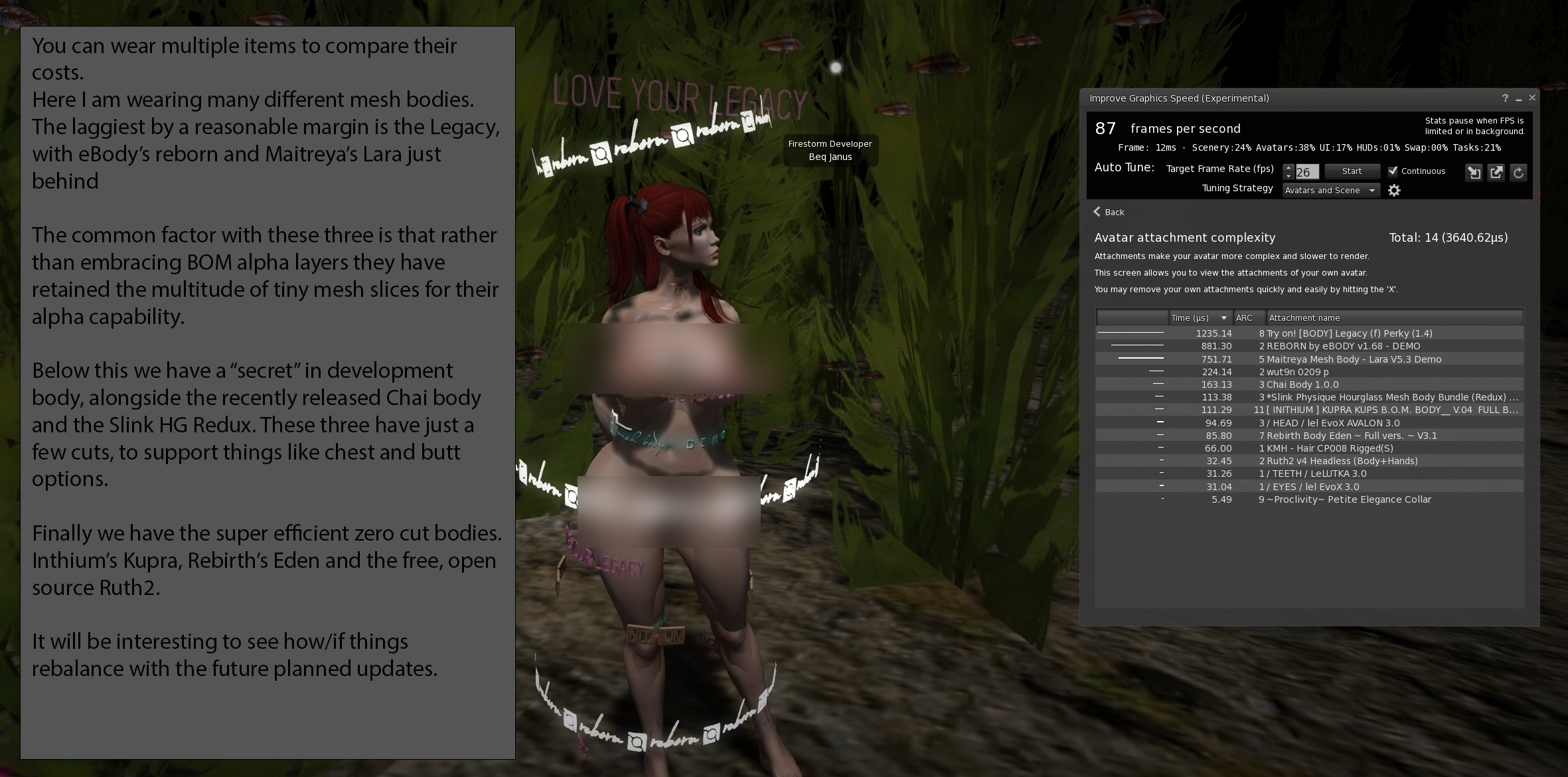
However, you can check the cost of your own attachments by looking at the "Your avatar complexity" panel. This panel lists all of your non-HUD attachments and their costs. You can now see what is the most costly item you are wearing and decide if you can do better. You can also use this to compare the impact of different items, try on different hairstyles and see which ones are laggier. In the market for a new body? Grab the demos and wear them all, compare the performance as well as the looks before making your choice.

Can't Firestorm do all this for me? Auto tuning, the pros and cons.

Succesful Auto tuning requires a little restraint and some managing of your own expectations. 
There is nothing I can do to make your decade-old potato of a laptop, run at 50FPS in a sim packed with Mesh avatars. Not happening. However, Auto-tune can and will try to do the best it can for you. 

Basic Autotuning

When using Autotune we set a target FPS level and whether we want to adjust the avatars only or the avatars and the scenery. We can also decide if we want it to run continuously while we continue to enjoy ourselves or to run once and then stop.

Troubleshooting tip: why is my friend flat, pixelated and their animations slow?

If you unexpectedly see imposters everywhere then double-check that Autotune is not forcing your Render time limit too low. If so, turn off autotune and manually adjust the slider.


Autotune FPS - Best practice #1 start low. 

Consider this, you are at a club, surrounded by gyrating mesh bodies. Your FPS has dived to single digits, and not even high single digits, you just want to move around a bit but it is like wading through molasses. You can't really turn off all the avatars, because then you'll barge them all out of the way and spend the next half an hour apologising. 

Set the Autotune to something higher, but not too high, Try 12 FPS maybe? Once you have selected the target FPS, you can hit start. The target will be shown at the top of the floater, Starting as Yellow or Magenta, and hopefully turning green when we reach or exceed the target.

The Autotune will consider the factors and try to tune subtle things such as avatar shadows first. Then resorting to other measures. You'll see the Mac Render Time slider zipping to and fro. If you are too ambitious then the Autotune will try its hardest and perhaps overshoot, then undershoot and you'll be back and forth and not settling. Pick something comfortable and within reach and you'll find the experience more rewarding. 

Autotune FPS - Best practice #2 Avatars only or Avatars first?

By default, the tuning strategy will be set to "Avatars and Scene" this allows the engine to consider avatars first and then if it cannot get enough boost from the avatar tweaks then it will resort to scene wide changes. Which of these you want is very dependent upon where you are and what you are doing.

If you are wandering in a scenic region and there are a number of people around then you might select "avatars only" to ensure that you keep the scene at the settings you like but allow the engine to degrade the avatar quality of others as you walk around. 

Autotune FPS - Best practice #3 Experiment with autotune settings (but don't forget that you did)

The "gear" icon on the autotune panel takes you to advanced options. some of these are rather obscure and I won't explain them in detail here, but feel free to experiment. What is the worst that can happen? It will change your settings and everything will look weird. Use the Firestorm graphics preference save/load options to store a setting to return to should that happen.

Have fun, I hope that this feature helps.

Most of all I hope that through this new way of presenting the determining performance you not only be better able to manage your experience in SL but will learn more about the impact we all have on one another's Second Life. 

I hope to extend this feature with future releases and integrate it with the Linden Viewer so that a similar feature is available to everyone no matter what viewer they are using. What is more, the next few months should see some dramatic changes in the rendering performance going live in Second Life as Linden Lab has been working very hard on performance tuning. I hope to be able to adapt these tools to the "new normal", to provide more options and add more "intelligence" to the tuning.


Sunday, 20 June 2021

Summarising the next improvements to Firestorm Mesh Upload

In my last blog, I covered at length one of the changes I have put into the forthcoming Firestorm release. This post is a shorter summary of those changes and two other updates that I think will appeal to many mesh creators. 


1) Materials subset handling and related errors

For a full, blow by blow account read the previous blog, but in summary, the way that mesh "texture faces" are handled has been rewritten to give you more freedom in how your meshes are organised.

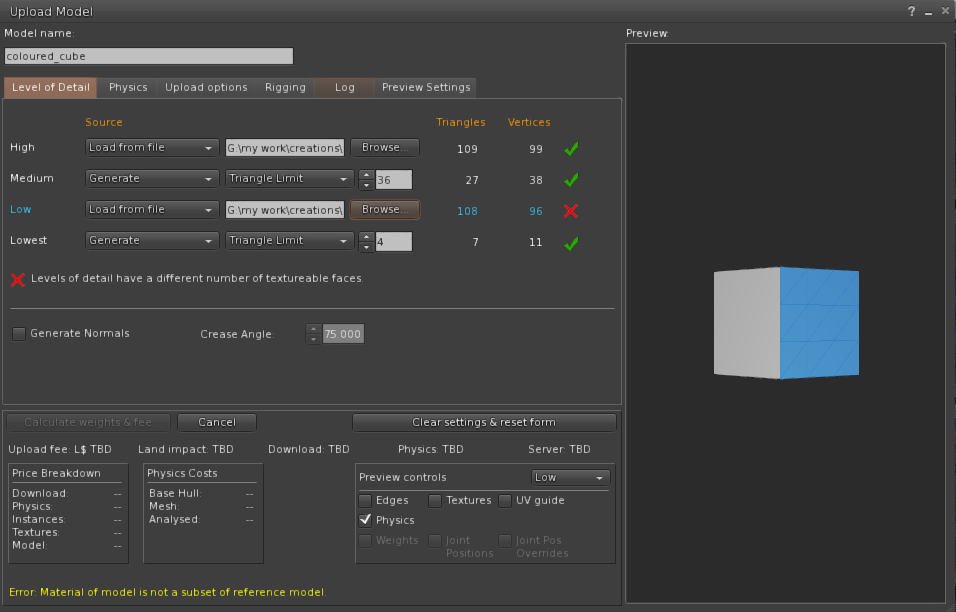
As best I can tell, there has been a bug in the Mesh upload parser (the thing that reads your Collada files and prepares them for upload to SL/OpenSim), so in-grained was this bug that most of us never realised it was a bug. We have all become accustomed to having to place empty triangles in every LOD model to represent the full set of material faces. Given a Mesh "house" whose High LOD model uses 5 materials, "frontwall", "roof", "door", "carpet", wallpaper", we might remove all the geometry from the interior faces for the lower LODs as you would never see those from the outside. However, creating "house_LOD2", as the medium LOD model with only the exterior materials present would result in the error, "Material of Model is not a subset". We would grumble that this was a subset, but with no way around this problem, dutifully return to Blender and add 2 stray triangles and assign one of the "missing" textures to each.  This is painful, time-consuming and frustrating but most importantly it is very confusing for new creators. It also has a further serious side-effect. the LOWEST LOD model is notoriously over-priced in SL, by which I mean that the cost of each triangle in the LOWEST LOD is so high as to make it near impossible and at best time consuming to produce a good LOWEST LOD model. For example, a small hand tool which due to its small size will rapidly be reduced to LOWEST LOD, can typically have no more than around 20 triangles before it starts to seriously drive the Land impact up. If you have to give away a number of these precious triangles just to please the grumpy uploader trolls then you have already lost a large proportion of your allocation. 

Form the next Firestorm release this will no longer be the case. With the exception of the high LOD model all the other LOD models can now have any valid subset of the High LOD materials, they do not even have to be a subset of the immediate parent LOD. 
Thus you can have the following structure
8 faces in the high LOD - A,B,C,D,E,F,G,H
4 faces in the Medium    - B, E, G, H
2 faces in the Low           - A, C
& just 1 in the LOWEST  - F

Or any permutation of these. The only requirement is that the superset of all materials used in all LODs must be present in at least one triangle in the HIGH LOD.

2) Ready-to-use physics presets


The physics shape tab on the mesh uploader is generally not well understood. This is in part because it is a technically complex thing, in part because the viewer has not helped as much as it could. I can't do too much about the former, though I've written a number of blogs that try over the years, the latter part I can do more with.

As of the next Firestorm release, creators will find 3 new options when selecting a physics shape.
1) The cube.
2) The hexagonal cylinder.
3) the user-defined mesh.

There tend to be two sorts of people when it comes to defining physics shapes, those that do and those that don't. For some items it is barely worth worrying about, for others it is essential. However, given that in SL it is often hard to predict how an item might be used once it leaves your protective custody, it does no harm to make sure it has a minimal physics shape that is broadly aligned to the volume of the mesh.

Many people will select the "lowest LOD", often some unrepresentative triangle. This will upload, but it means that once the item is rezzed inworld people cannot interact properly with it. A much better option for many items is a simple cube, and a lot of us keep a simple 8 vertex cube on our drives for just this. You no longer need to do this. The hexagonal cylinder is intended for items that are not quite so "cuboid".

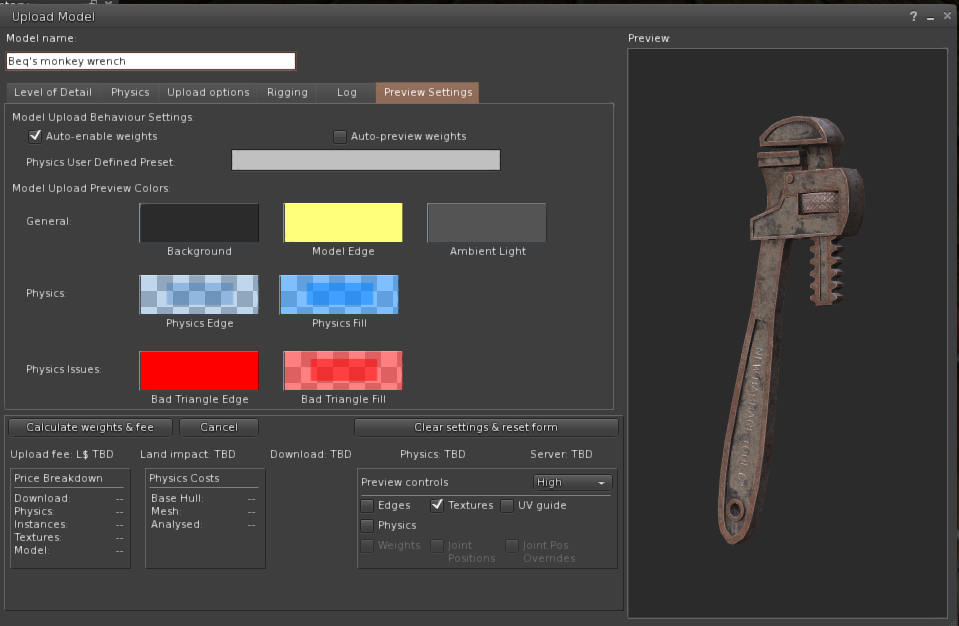
I toyed with providing something vaguely spherical but came to the conclusion that any shape I came up with would fail to meet some need. So instead I added the ability to provide a "user-defined" physics mesh. This is a way to have a shortcut to that "shape you always use". It can be configured in the Settings tab on the upload floater. 


Some items require a custom physics shape, walls with doors and windows that you wish to allow passage through, for example. No defaults are going to help much there, but let me know if there are things that you feel would help. 

3) Ambient lighting in the viewport.

A couple of years ago, I changed the lighting in the preview window to make the three-point lighting work "better" but for some reason, things always remained dull and flat. Recently, it suddenly struck my partner Liz why this is. the ambient lighting is wrong. Upon investigation, it turned out that it was not just wrong it was "black". I have no exposed this setting on the "preview settings" tab so that you can change it, I have found a dark mid-grey about 33% grey works well and makes the lighting "pop" properly. It is especially useful when uploading with textures.

At the time of writing, there are two minor niggles that I may change before release. 
1) It still defaults to black. I considered this as a good plan but given that anyone upset by better lighting can change it to dullness again I think I will change the default to something sensible.
2) When you change the control the preview will not update until you either pan the model or reopen the uploader. I may not be able to fix this immediately.

I hope these three sets of changes improve the quality of the uploading experience for you as much as they have for me.

Take care.

Love Beq
X

Tuesday, 1 June 2021

Taming the mesh uploader - Improved workflow for builders coming to Firestorm soon

Introduction


Deep in the warren-like tunnels of the Second Life viewer code base lurk many beasts that hide in the shadows. One such beast that often shows itself at the most unexpected times pouncing upon poor unsuspecting builders, is known as the MOMINAS (Material Of Model Is Not A Subset).

TL;DR - enough with your silliness Beq, what's yer point? 

OK, the boring version. The next Firestorm should have my rewritten mesh validation that supports proper material subsets. You will no longer be forced to keep a "single triangle" placeholder cluttering up your LODs. Furthermore, two new error codes have been added to replace cases where past laziness has reused the same error code for very different issues.
Back to our tale...

The Tale Of The MOMINAS

It's a regular Friday evening at the builders' tavern, "The Prim and Proper", and many regulars are clustered around the small tables or slumped at the bar. All of a sudden, the door flies open, drawing mutterings about better door spells and smooth rotations from the occupants. A forlorn figure stumbles in from the foggy evening outside. Battered and bruised, their overalls torn and smeared with what everyone hopes is grease, the new arrival stumbles to the bar.

"Pint o' bane, please, Mal", mumbles a tired, somewhat subdued voice.  

A tankard of foaming beer slams onto the bar, accompanied by a loud chuckle.

"Blimey, someone's had a bad day of it. There ya go, get that down ya." Malcolm, the gentle giant of a Landlord at "the Prim" has seen it all in his time.

The newcomer mumbles a thank you and sips at the beer. A minute or so passes, the background babble of the pub returns to its normal levels. 

"All day! All bloody day...!" The outburst takes a number of customers by surprise and heads turn towards the newcomer again, who is staring, wild-eyed and unfocused across the bar, their arm protectively wrapped around their drink. "Fighting them, time and again, one after another. Every time I get rid of one of them, another leaps up in its place." A pause, a large gulp of beer and the newcomer turns, "MOMINAS!", they exclaim woefully, and a look of pity and recognition spreads across the assembled faces.

"They wasn't never meant to be, ya know." A cracked old voice, suggests as old Alex emerges from the shadows, ready to impart the acquired wisdom of his many years. Ignoring the questionable grammar, the newcomer turns to listen. "They's gotten too full of 'emselves ya see. Yer common or garden MOMINAS was only meant to tell you when you'd broken the laws of LOD, but they've been out o' control for years. Bad as dem MAVBLOCKs if you asks me. Prolly worse now since The Taming."

Mutterings of agreement, echo through the crowd. "Back in the day, the MOMINAS, was bred in the Lab, special-like, as a guardian to sniff out material errors in LODs that would corrupt your constructions. But "Material Of Model Is Not A Subset" to give the MOMINAS, its proper name, escaped the wards and cages of the Lab when Mesh was released and it went feral. Since then the MOMINAS has lurked in dark places, attacking lone builders without cause, spreading confusion, and worse....", the rheumy old eyes scanned the bar, flourishing his empty tankard, "... far worse...", he gave a little cough and smacked his lips, until a fresh tankard of frothing brew was thrust towards him by Malcolm. "Inefficiency!" He exploded, "it makes your stuff worse not better" the old man cackled, and a shocked hush spread,

"yes yes," he mused, toothlessly. "They was meant to make sure your LODs were aligned to the HIGH LOD. Even those first year's at the academy get taught the laws of LOD by rote; how every LOD must have exactly the same materials as the LOD above, but the laws is ... corrupted." A spray of spittle emphasises his disgust. He nods to himself and slurps his beer.

"Subsets, ya see, Sub Sets." stressing each syllable as if in the hope it would give it more meaning.  "It was meant to be that you only 'ad to 'ave a proper subset. If your house was built of Brick, Stone, Glass and Wood, then your LOD could use any mix of those, but not add Metal. A Medium LOD with no Glass should be fine. But oh no, no no no no no the MOMINAS had other ideas. and for years they's been forcing us all to think we had to have all the materials in every LOD. That ain't no subset! Any fool can see that." Banging his tankard down with a crash upon the bar as if to vanquish the monsters, the old man paused, looking slowly around as if to gauge his chances of gaining another free beer. But before he could try his luck, a voice spoke from the shadowy corner. 

"You're mostly right, old man.", said a woman's voice, its owner stepping out of the shadows. "but things are about to change." Whispers spread rapidly through the tavern, replaced just as quickly by an expectant hush."


Taming the MOMINAS

What you know is true. The laws of LOD are correct in saying that a lower LOD must use a subset of the materials used for the HIGH LOD, but it has been incorrectly enforced, probably since mesh was introduced. 
Every Mesh has a numbered list of "Material Faces" up to 8, and when a LOD is defined it must use the materials from that list. 
Thus a Cube with six materials, Red, Yellow, Cyan, Magenta, Blue and Green. Could have a MEDIUM LOD with only Red, Yellow, Green. But it cannot have Black, Yellow, Green because Black is not part of the original.  Therefore a proper valid subset of the Materials should be allowed.

However, the spells and enchantments that were woven to validate mesh (or code as some call it) is flawed and whether through the misunderstanding of the wizard that cast it, or a series of errors on their part, it enforces a full match rather than a subset.

This is bad for a couple of reasons. 
1) The underlying error code is misleading
2) Adding 6 redundant triangles to your LOWEST LOD is a costly waste of resources that limits your ability to make a good LOD model and can increase the land impact.

I have recently changed all of these flawed enchantments so that a proper subset is now supported. 
At a technical level, an empty placeholder is created for every unused material, allowing a proper subset to pass through all the validation checks unhindered by the MOMINAS guardians.

So what does this mean in practice?

If you are diligently creating your "Imposter" model for the LOWEST LOD, you will typically do that either on a dedicated material or using "Spare UV space" on another face. Historically this left you also having to have tiny triangles assigned to every other material from the HIGH LOD with these changes you now have complete freedom, so long as your LOD is a valid subset.

And there's more

Over the years, through laziness or lack of time, the MOMINAS guardian has been set to guard other, often completely unrelated problems. This has lead to a MOMINAS attack for errors that have nothing at all to do with Materials, subsets or otherwise. Other examples are:
1) No High LOD Model found - this generally indicates a more significant failure to read the Collada scrolls describing this mesh.
2) LOD model mismatch - this generally means that the matching spell, that attempts to associate parts of the LOD to the HIGH LOD, has failed to match (names are wrong, you specified the wrong scrolls etc)

These have been assigned two new guardians dedicated to their specific tasks.
Keep an eye out for other unwarranted attacks and report them to me. I can try to tame them.

How do we get these?

A new Firestorm viewer is expected to be released "soon". The QA testing period should begin soon and all being well, a release will follow that has these, and some other benefits which I'll explain over another tankard, another day.. 


Saturday, 1 October 2016

Bug hunting - Fixing an ancient LOD issue

Those of you who may have read my blog post in July, "Tell your friends - An old bug that people really ought to know about." might be interested to know that I have made a lot of progress towards fixing it.

TL;DR

The long-standing bug discussed in the blog (see link above) that impacts the way that certain Mesh objects decay their LODs has been identified and fixed. I will be submitting the patch to Firestorm and other TPVs where applicable and back to the Lab so that (if it is accepted) we can be rid of this pain in the posterior.

Introduction

After having suffered and grumbled at this bug for a long time I decided to bite the bullet and for the first time since about 2009, build and debug the viewer. After a week or so of digging around and working out how V3 viewers hang together, I now have a solution to the problem we observe, but it still needs to go through QA and of course the thing I cannot know...why did it do that? More of that later...

The basic problem

Here is the basic problem as we originally observed it.

Any mesh object with either 3 or 4 texture faces will crumple earlier than an identically sized mesh with only 2 texture faces.

But in fact it is worse than that (a little).

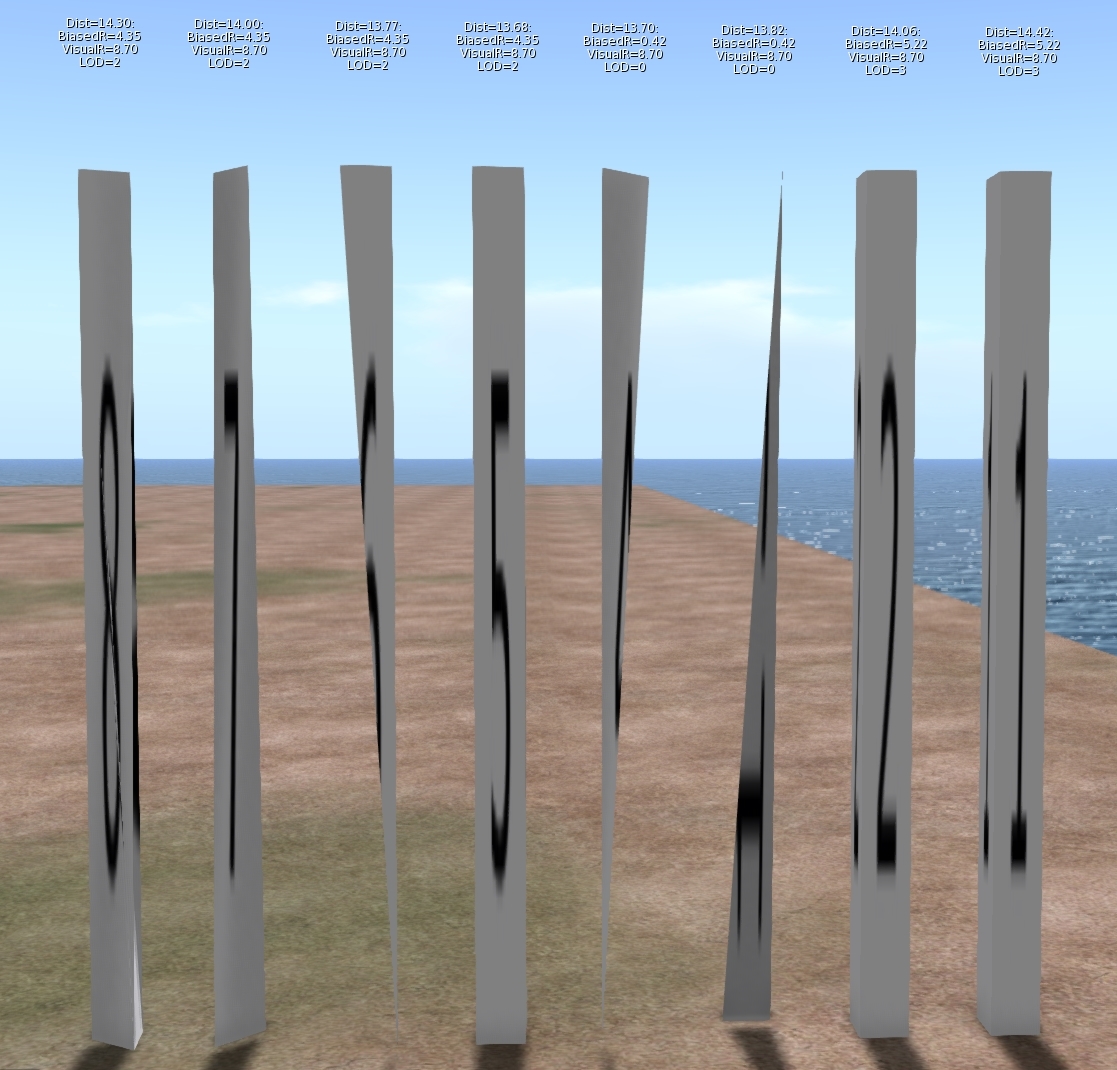
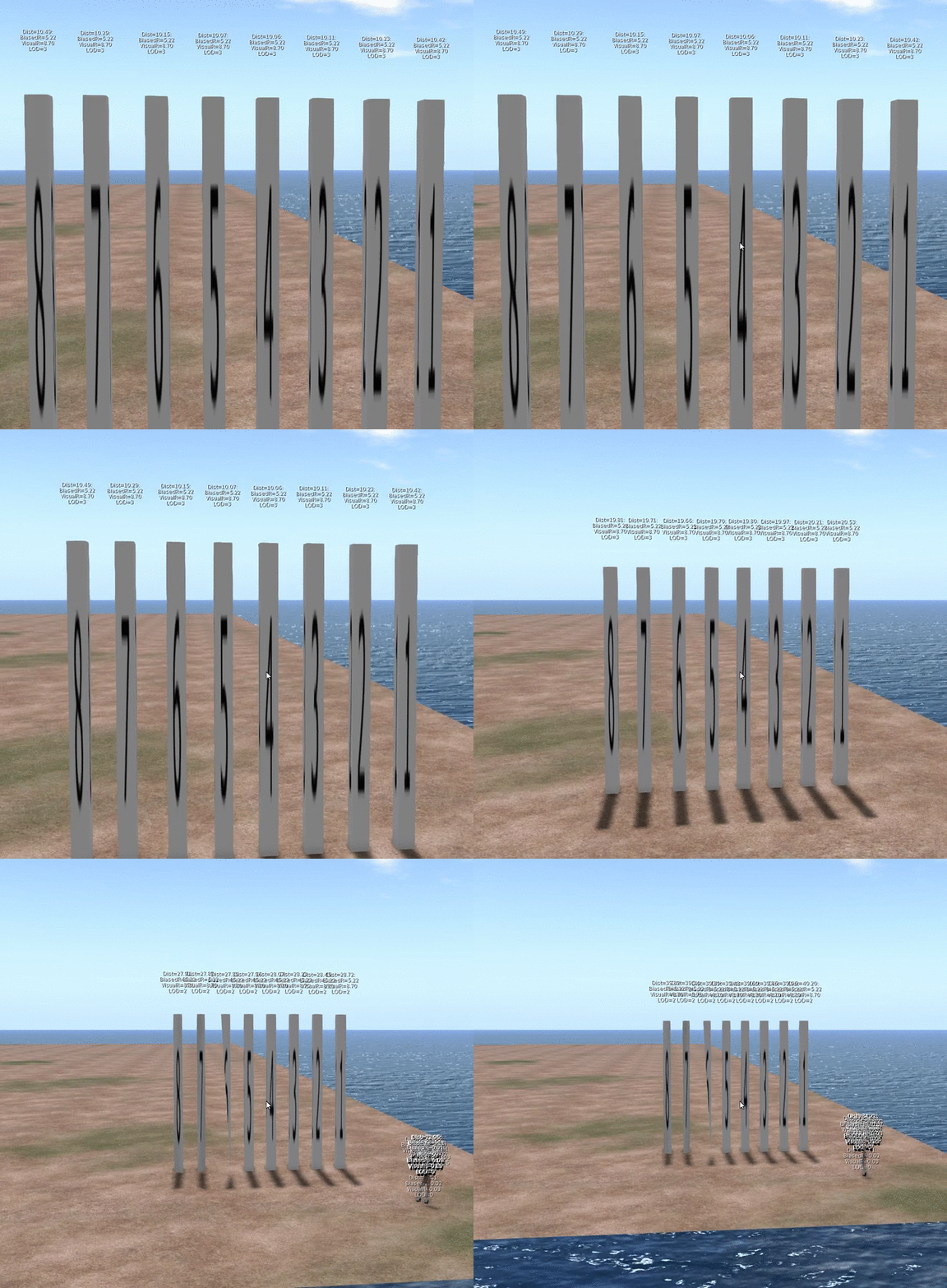
As I dug into this problem it turns out that this is not a problem that affects 3 and 4 materials only, it just affects them worse. Meshes with 5, 6, 7 & 8 material faces will also collapse earlier than the comparable 1 and 2 material versions. The following image will illustrate

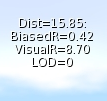
The image shows 8 identically sized columns. Under normal circumstances, one would expect these to look identical and change LOD at the same distance from the viewer. The textual display above each shows the following:
Dist:                   The distance of the object from the viewer.
Biased Radius:   An adjusted radius based upon a biasing algorithm, the source of our woes.
Visual Radius:    The "True" Radius defined by the bounding box of the object.
LOD:                  The Level Of Detail currently shown. 3=HIGH, 2=MED, 1=LOW, 0=LOWEST

The display is a bug fix/enhancement of my own and if accepted will appear in a future viewer. It is a change to the existing Render Metadata -> LOD Info which is basically broken on all existing viewers. I should also note that I use the term radius here, because not only is it the term we use inworld when examining the LOD equations, but it is also used in the code, all of which is despite the fact that it is not the radius at all but the long diagonal of the bounding box!

As you can see, Objects 1 & 2 are still at LOD 3, even though their distance from the camera is marginally more than the others. Further scrutiny of the hovering figures shows that the Biased Radius is 5.22 compared to 4.35and 0.42. Objects 3 & 4 have collapsed to LOD 0, with a biased Radius of just 0.42 they had little hope of remaining visible. While all the others have decayed to a slightly withered LOD2.

But why does this happen? To understand this we need a little implementation detail.

What does a mesh look like on the inside?

SL is often criticised and even rubbished for the way it does things, but if I am really honest I have a great deal of admiration for the general architecture. For a system design 15 years ago it has managed to grow and adapt and shown remarkable durability. The code certainly bears many battle scars and the stretch marks of its adolescence glare an angry red under scrutiny but the fact that it has gone from super optimised prims through to industry standard Mesh, growing as and when the technology of its users was best able to adopt it is very impressive. 

Second Life has achieved this longevity through a series of "cunning plans" which have extended the capability without altering the infrastructure drastically. all the objects in your inventory have a top level structure which is basically a legacy prim, extensions have been variously grafted on to this but leave behind the traits of the original prims. This means that, even though they are unused, a mesh has a slice, taper and cut setting as well as many others.

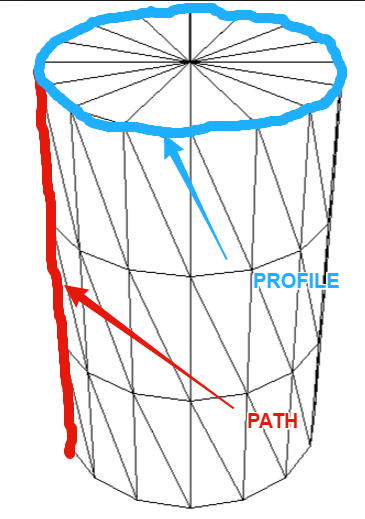
These top level prims also denote what type of prim they are, cube, sphere, cone, etc. and Meshes are no different. The basic shape is determined through two parameters the PATH and the PROFILE. Thus a sphere has a PATH and PROFILE of CIRCLE, while a cylinder has a PATH of LINE and a PROFILE of CIRCLE. Sculpts came along later and are indicated by the presence of a sculpt parameter block on the end of the Prim. Perhaps surprisingly Mesh is denoted as a type of Sculpt with the "SculptType" is set to the value 5 representing Mesh.

This allows the "cunning plan" that the settings for a sculpt can be reused. In a traditional sculpted prim, the SculptID holds the asset server UUID of an image that defines the sculptmap. In a Mesh the same field is used to hold a UUID of the underlying Mesh. It is important to note here that the Mesh that you upload is given this UUID that is the "child" of the Mesh object. You never actually get to see or know the underlying Mesh asset ID inworld.

So we now know that a Mesh is really a legacy prim, denoted as a sculpt, whose map is redirected to a Mesh defintion. So let's see where it goes wrong.

LODScaleBias and the legacy impact.

My first task in trying to fix this bug was to start to map out the viewer. It has been at least 6 years since I last looked at the viewer code and back then I was only really building it for my own purposes. The code has all the hallmarks of mature and much patched and extended code and is a bit of a rat's nest at times, but nestled deep inside the nest is a function simply called calcLod()
This function, along with the name, also was home to the output for the Render Metadata->LOD Info function.

The Render Metadata services are a set of great tools for builders and developers who are trying to understand a problem, those who have read this blog in the past will be well aware of the physics display. The LOD Info display has been a bugbear of mine for some time, I have never been able to work out what it was displaying, It would show a number that would typically not change with the LOD display and was to all intents and purposes useless. It turns out that is exactly what it is. At some point in the past it appears to have been borrowed for some other purpose and upon examination had nothing to do with the LOD at all. The damning evidence was a commented out remnant of the original call. My first "fix" of the expedition was, therefore, to make this function more useful, the new display is shown on the left. I will be submitting that patch separately.

Back to our friend calcLOD().
I won't post the code here, it is too long but the function does what you would expect it to do given its name but the devil is in the detail.

BOOL LLVOVolume::calcLOD()
{
F32 radius;
F32 distance;

if (mDrawable->isState(LLDrawable::RIGGED))
{
// if this is rigged set the radius to that of the avatar              
}
else
{
distance = mDrawable->mDistanceWRTCamera;
radius = getVolume() ? getVolume()->mLODScaleBias.scaledVec(getScale()).length() : getScale().length();
}
.....etc etc
}

There are a couple of interesting diversions in this function, the first we covered above, the second is a special clause for rigged attachments which deliberately adjusts their LOD scale to be that of the avatar that is wearing them. This is the subject of a Jira and is likely to come under scrutiny in the current quest to improve complexity determination.

However it is the code in bold and further highlighted that we care about. What is this LODScaleBias? Our amended LODInfo display proves that this is the culprit. The BiasedRadius of a 3 face Mesh is shown on the left and can be compared to the same mesh with 6 material faces shown in the example above. 0.42 when the true radius is 8.7, no wonder the thing crumbles. 

Digging deeper we can identify where the LODScaleBias vector is initialised. 
BOOL LLVolume::generate(){
...snip...
    mLODScaleBias.setVec(0.5f, 0.5f, 0.5f);
...snip...        
    if (path_type == LL_PCODE_PATH_LINE && profile_type == LL_PCODE_PROFILE_CIRCLE)
    { //cylinders don't care about Z-Axis
        mLODScaleBias.setVec(0.6f, 0.6f, 0.0f);
    }
    else if (path_type == LL_PCODE_PATH_CIRCLE) 
    {    
        mLODScaleBias.setVec(0.6f, 0.6f, 0.6f);
    }

 ...
So here we have it.

"Cylinders don't care about Z-Axis"

The code above sets up the bias. The default bias is <0.5, 0.5, 0.5> and I'm feeling rather stupid now because having said previously that Radius is not really the radius...if you take the long diagonal and half it then of course you do have the radius (the radius of a sphere that encloses the bounding box, at least.) We then get to the code in bold red. Here we find that if the legacy prim has a linear path and a circular profile then it must be a cylinder, 
The image to the left shows my hand drawn annotation of what those two parameters mean. Anyone who worked with prims will most likely understand the terms.

This does pose a couple of questions, the most obvious of which is:-
"Cylinders don't care about Z-Axis" WHY!!!!?

There seems no logic to explain why a cylinder would be set to LOD quicker. Clearly, when used as a column it results in a high number of long thin triangles but does that really warrant such punishment? I have enquired with a couple of Lindens to see if we can get some clarification on the history of this.

Noting the <0.6, 0.6, 0.0> when applied to our example mesh columns give a Radius of 0.42 we can confirm that this is , as had been suspected, how out poor Meshes are being evaluated, and so the second most obvious question is:-
Why is my Mesh arbitrarily being branded as a cylinder? 
Again there seems no rhyme nor reason to the 3 and 4 material face meshes being treated this way. If the lab responds with an answer to either of these I will post a blog to share the info.

Having determined why we have this issue we need to go and find out where. At first, this seemed a daunting task. Somewhere in all the viewer code was a single line or two that was initialising these parameters incorrectly. I decided to start at the very beginning. The beginning for any asset is when it gets sent from the server to the client, a little hunting and we find a function that is called to process and unpack an update message for an object. In this code, I found the point at which the parameters are unpacked and placed some additional logging to print out the settings. 

Lo and behold the viewer is not to blame at all. The Object is already tainted before it arrives. This means that something is happening on the server and it would seem to be deliberate. 

How can we assume it is on the server? 

We have in previous blogs examined the Mesh Asset upload format and can note that there is no room in there for the legacy parameters. Moreover, that asset is the data that is referenced as the "SculptId". The Containing/parent prim is different, it is created on the server side, presumably during the validation of the upload process, the initilisation of the parent object must be assigning default values based on certain consistent criteria and as such results in the problem. As with the above, I have asked the lab whether they can confirm the reason for this, primarily so that we can understand if there are any side effects.

Having noted that Meshes are already tainted I added code to list out the types of Mesh and using a conveniently empty sim on the beta grid Aditi I created my series of 8 "identical" meshes.
the result can be summarised as follows.

# faces
PATH
PROFILE
BIAS
1
CIRCLE
CIRCLE_HALF
<0.6,0.6,0.6>
2
CIRCLE
CIRCLE
<0.6,0.6,0.6>
3
LINE
CIRCLE
<0.6,0.6,0.0>
4
LINE
CIRCLE
<0.6,0.6,0.0>
5
LINE
EQUALTRI
<0.5,0.5,0.5>
6
LINE
SQUARE
<0.5,0.5,0.5>
7
LINE
SQUARE
<0.5,0.5,0.5>
8
LINE
SQUARE
<0.5,0.5,0.5>

That is the end really. With the fix in place the Meshes quickly resolve and the new LOD Info display confirms that the Bias is no longer unfairly having some meshes. As for side-effects, we only modify at run time, and nothing is ever saved back to the server. Moreover I have implemented this to be configurable and should any issues arise it could be easily disabled. 

So what next? 

I am no cleaning up the code to remove or at lesat comment out any of the debug logging I used. I will then create a submit a patch to Firestorm. Having spoken to Oz Linden, I have been asked to sign a contribution agreement, this is a form that protects the Lab (and thus all of us) from me giving code and then claiming some licensing later.Once I have that in place the lab can accept my change and would then consider it. So that means that subject to QA and testing to follow hopefully we can put this bug to rest once and for all. 

It leaves a few loose ends. 

Why does a Cylinder ignore the Z? I just want to know.
Why does the server do this and will/should the server-side get fixed?
Would fixing this on the server make a difference to the SL Map

That's all for now, I shall leave you with an animation of the FIX in action,

Love

Beq
x