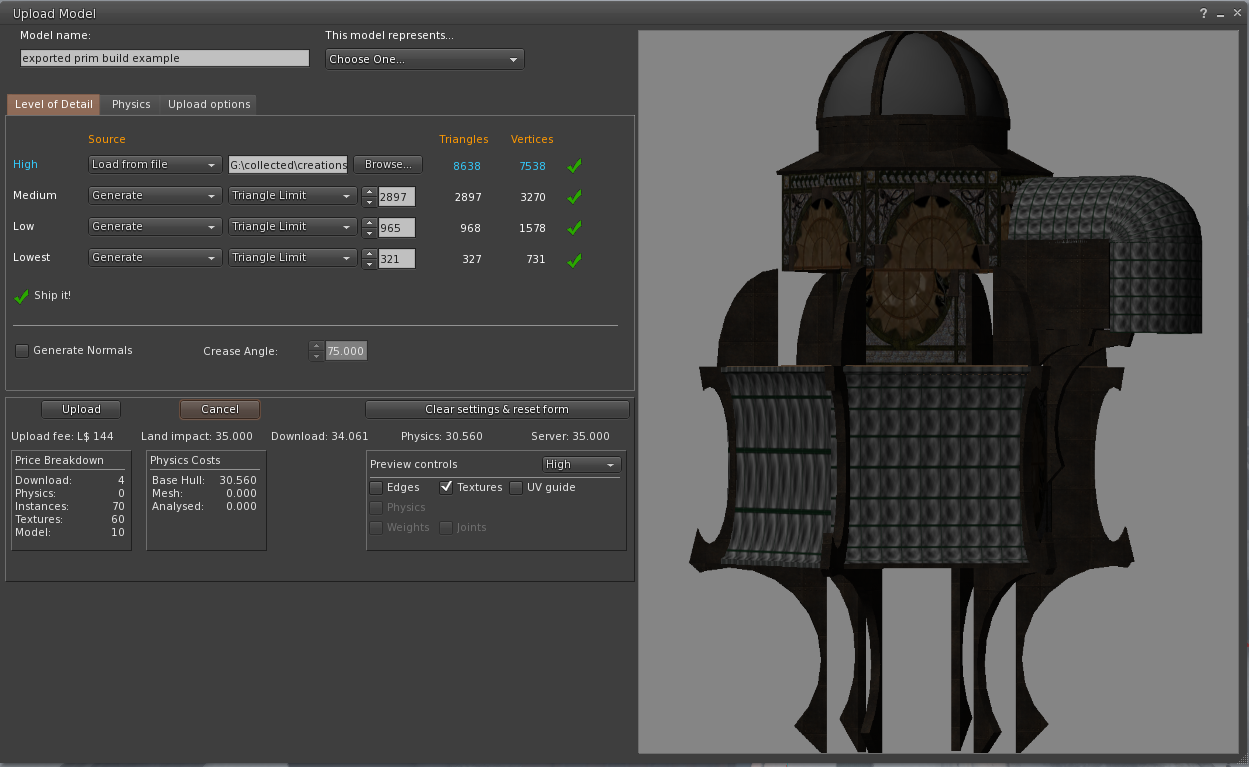
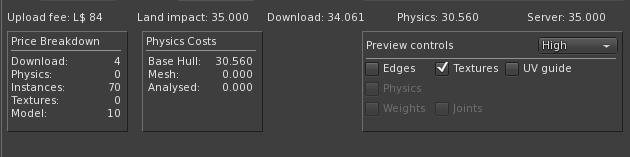
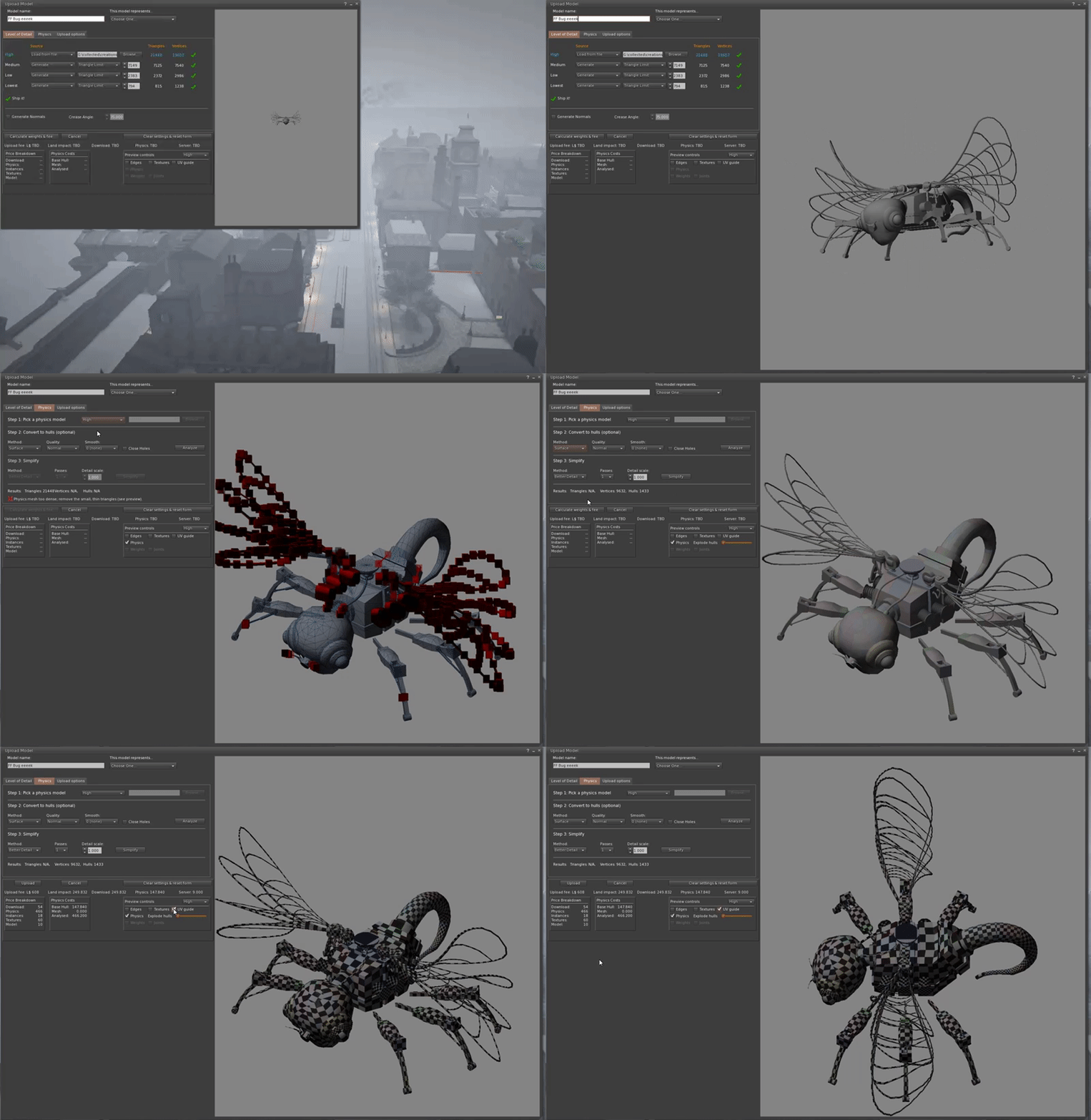
Saturday, 11 September 2021

Why crowds cause lag, why "you" are to blame and how "we" can help fix it.

Everything is slow, and we're to blame...


OK, buckle up; this one is going to be a long one.....

We all know the deal, you go to a shopping event, and you wade through a tar pit of lag until you can click the "render friends only" button and remove all the avatars. 

More Avatars = More Lag

Why do avatars cause so much load?

If you look through the blogs and forums, you'll find that there is much conjecture over the causes, and you can easily find an "expert" who'll explain to you the problem of onion skin meshes, triangle counts, poor LODs, and invisible duplicate meshes to name but the most common. 

As with many myths and pseudo-scientific speculation, there is an air of plausibility, and often enough, a grain of truth. However, while many of these may contribute to lag, the hard experimental evidence points to something so large that it eclipses them all.

We'll examine each of these "usual suspects" as an appendix at the end of this post. For now, let's cut to the chase.

The number one cause of lag is...Alpha cuts

Alpha cuts? You know that nice little convenience feature, the one that lets you hide parts of your body? The ones where over the years, people have nagged and pushed for more and more detail in the alpha slices. Every one of those little areas is a "submesh", and (as I'll explain) these are the number one cause of avatar-induced lag without any shadow of a doubt. Until BOM, of course, it was not a convenience feature; it was the only way to alpha a mesh body. A requirement because of a shortcoming that dates back to the first use of mesh bodies. But these days, we have BOM, and for the majority of uses, this same alpha effect can be accomplished with more precision and far more efficiently using an alpha layer.


Why are these specifically such a problem?

Every mesh object in SL is made up of one or more "submeshes". Each submesh represents a texture face on that model (allowing it to be coloured, textured, or made invisible independently from the rest.)

A mesh object can have at most 8 texture faces (submeshes); after that, if we need more independent faces, we have to add another object and start to add faces to that, repeating until we are done. 

In the viewer rendering pipeline, every submesh results in a separate package of data (known as a drawcall) being sent to the GPU (this parcel of goodies gets unwrapped by the GPU and used to draw part of the final image that will appear on your screen).

This is important because "drawcalls" have a substantial overhead. You can picture it like this.

We have a production line in our living room, making little sets of triangles and sending them off to our client (the GPU). We cheerfully pack triangles into a box, along with all the necessary paint and decorations needed to make them look pretty, wrap them up securely, put a bow on top, walk to the post box, and pop the box in the mail to the GPU. 

How long does this take us?

If we break this process down, we find that packing the triangles themselves is remarkably quick; we can pack 10,000 triangles rapidly (for illustration, we'll say 5 seconds). But packing it into the box with all the other paraphernalia and walking to the post box with it takes an awful lot longer (let's say 5 minutes just for this illustration). In fact, it takes so much longer that it doesn't really matter how many triangles we are cramming into the boxes; the time spent dispatching them will dwarf it.

If we had a mesh body of 110,000 triangles to send to the GPU. Placing it in one large box will take us, 
11 x 5 seconds to pack triangles in a box = 55 seconds (let's call it 1 minute)
  1 x 5 minutes to send that box. = 5 minutes 
The total time to send our body was 6 minutes. 

If instead, we chop up the body and send it out in 220 separate parts:
11 x 5 seconds to pack the triangles = 55 seconds (it is the exact same number of triangles)
220 x 5 minutes = 1100 minutes
Total time to send our body is now 1101 minutes, or 18 hours and 21 minutes.

That Mesh body your avatar is wearing is very likely to be in the Render time equivalent of hours rather than minutes. We'll be looking at some "real" numbers next time. 

To put this in context, here are some "typical" numbers collected in an in-world survey, jumping around places in SL. 

BodyTotal facesaverage visible faces# times slower than best in class (higher is worse)
Maitreya Lara30423012.78
Legacy147134018.89
Belleza Freya111619010.56
SLink HG redux149301.67
Inthium Kupra83181.00
Signature Geralt9033708.22
Signature Gianni11594319.58
Legacy Male10461743.87
Belleza Jake9074018.91
Aesthetic2052054.56
SLink Ph. Male BOM97451.00

Notes:
I quote the average number of visible faces instead of the total faces because the drawcall cost of fully transparent "submeshes" is avoided in almost all viewers. This number varies depending on the outfits worn, so it is only fair to judge by the "typical" number visible during our sampling. 

As you can see, we are all paying a remarkably high price for the convenience of alpha slicing.

Bodies are, of course, the number one offender, closely followed by certain brands/styles of hair and heads.

Don't blame the body makers.

Let's be clear why we have ended up this way. It is the lack of a clear understanding of how bad this was. In this ignorance, many designers, body makers, and most importantly, you and I, the customers, have not only let this continue, but we have also encouraged it. Demanding more cuts, more flexibility. I've seen blog posts and group messages written out of complete ignorance, asserting that "[body creators] who have forced their users to adopt BOM and removed alpha cuts" had "got it wrong". 

No, they got it right; this was entirely what was hoped for; it's just that people were not ready for it, and arguably the tooling and support were not either.

So what now? How do I get a lower lag body? I like my wardrobe 

Write to the CSR of your favourite body and ask for a cut-free edition. 

Let's face facts. We all like our wardrobes, and we don't like to give that up, and we don't necessarily need to. The same body, the same weights, can work without the cuts. None of your clothing goes to waste, though you will need alpha masks to take the place of those HUD-based alphas and the "auto-alpha" scripts. 

If enough of us ask for an efficient version, then one of two things will happen:
EITHER:
The body makers you contact will provide uncut versions alongside the cut versions and share some of the knowledge as to why the uncut ones are better. 

I sincerely hope that they will; in the end, this ought to be less painful for them - they have to spend a lot of time slicing those models up and tweaking things.

OR:
New bodies will fill the gap for performance, and slowly people will move over. We already have two female cut-free bodies for those willing to move. 

There is, of course, a second part to this. Those lower lag bodies need alpha layers, and clothing creators need to start offering alpha layers; with the recent success of the Kupra body and this finally happening anyway, and over time this will help make clothes more flexible as they will no longer have to "cut the cloth" to where the alpha cuts are. For older clothes,  it is worth noting that many outfits do not need an alpha; many more can work with standard off-the-shelf alphas. So all those old outfits are probably fine. What is more, if you place the alpha layers into the outfits folder with the clothing, then they will be automatically worn and replaced.

Finally, remember, this is not do-or-die. We can still choose to wear an older laggy body when we want a specific older outfit that we haven't managed to get an alpha for and for which standard alphas do not work.

This is all very well, Beq, but what about X?

There are undoubtedly a bunch of you going, yep, but my XYZ outfit needs blah and what about this corner case over here?

None of those are going away. You will still have the choices. If there is an apparent reason why you need to have a more complex body, then nobody is stopping you. All I am doing here is waving a red flag to highlight just how much damage this "convenience" function is doing. 

For example, time and again, people raise the "oh but I must have onions cos BOM has no materials", The appendix talks about this. If you need onion skins, you can have them, but if you have them on a 12 mesh body, you'll now have 24 meshes. If you have them on a 240 mesh body, you'll now have 480... kill the cuts. After that, I'll moan about onion skins, but it'll have far fewer teeth :-)

If we can move to a saner "normal" where bodies aren't made up of hundreds of tiny fragments, then we can all afford to have extra onion skins for our materials, etc., without breaking the bank.

Can't the viewer make this better?

Not entirely, no. In the course of investigating this, I have identified a few things that can be optimised. But, even if I make the rendering cost of tiny meshes more efficient, all we do is move the scale a little; things would still be 10 or more times slower, and more importantly, we are still wasting time doing a largely pointless activity.

People who know me will have heard me mutter, "The fastest way to do an unnecessary task is to avoid doing it at all." when looking at optimisation. In fact, an amused friend recently sent me a link to this exact engineering philosophy coming up in a SpaceX interview. 

In the long term, the picture does change a bit. One day, we are promised that the viewer will migrate to a more modern pipeline; when we reach that point, the overhead of these so-called "draw calls" will be diminished, and the argument may flip back towards total triangles, etc. 

However, that is not yet. In fact, that is likely to be a good couple of years away, and keep in mind that some people do not even have a machine that can run a modern rendering pipeline. 

To put it bluntly, we can act, all of us, me, you and your friends, we can act now, to fix this problem and move to a far more sane world where we can go to large events without having to disable all our settings. Or we can wait and hope things get better naturally before everyone abandons SL for being a laggy swamp and goes someplace else.

Finally, there are a few "nice to haves" that we could really do with a mix of viewer features and server-side features. 

1) An easier way to make alphas; this is something I have proposed to the lab in a Jira feature request but is not currently on the "book of work".

2) We also need a few UI/LSL tweaks to allow HUDs to wear/remove alphas without things like RLV. 

3) Perhaps this is really #1. We need solid, reliable tools that tell us, both as creators and most importantly as users, whether an item is efficient or not.

But none of these is required for things to start moving forward. But at the same time, all of these "nice to haves" are entirely doable. Nothing here is out of reach. 

Come on then, Beq, prove your point.

OK, so there's a lot of blame being assigned here, mostly to ourselves as users, so I'd better have a good argument to back this up... I think I do, so before you flame me in the comments, let me show you why. My next post will share some empirical data gathered through weeks of performance testing that supports my arguments; I'll show you the extensive testing done and explain how you might try to do something similar to see it for yourself.

UPDATE: Part 2 is now online - warning statistics ahead 9/10 of you will be bored the other half will love it.

Appendix

But what about ...?

Here's a quick appraisal of the typical perspective on lag. The high-level summary is that most of these are valid observations and identify some form of inefficiency. Whether they contribute to FPS loss is another question, and until we get rid of the massive issue around draw calls, their effect is moot.

The poor LODs and poor LOD swapping:

There are several issues here that get conflated, and while each is a valid problem, they do not, on the whole, impact your rendering performance (hear me out on this).

For a long time now, I have been ranting about how poor LODs affect the quality of our lives in SL. This has not changed; moreover, the bugs that affect Rigged mesh rendering mean that they rarely get shown even when a creator has provided good LODs. 

So that's two issues, 
1) Creators do not provide proper LODs 
2) The LODs are not shown. 

Number one is moot if number 2 is not fixed and number 2 is not being fixed by the lab because of number 1.  That is to say that if we make rigged mesh behave as it "should" (thus fixing point 2), then your clothes would vanish very quickly because of point 1, which leads to grumpy people. 

We are, as they say, between a rock and a hard place...

But does it affect the FPS? Yes, to some extent. If you have a high detail LOD that is being drawn at a distance where most of the triangles resolve to a small number of pixels, then the GPU has to shade each vertex, and this can mean that a pixel in the final render is being shaded more than once, this is known as "overdraw". It means that your GPU is doing a lot more work than it needs to. Simply put, if every pixel on your screen was shaded once and then had to be done against, then clearly, it takes twice as long as shading just once would. This is a great example of a GPU bottleneck, which we rarely see in SL due to the draw call problems that dwarf everything else. These are real problems; they are just hidden from view right now. 

So it's those feet, those invisible feet!!!?

Or increasingly "OMG those lag inducing multi-style hairs". 

You'll see this on many blogs that discuss complex bodies and the impact of rendering, and to be fair, this is entirely plausible, and I have believed it myself. However, tests prove otherwise. 

Due to limitations in the Bento body, we do not have usable toe bones nor the morph targets that would allow us to distort the foot meshes to fit our shoes. As a result, we have multi-pose feet on our bodies. 

Once upon a time, I used to wear SLink single pose feet; I would wear the flat feet in a sandals outfit and the high feet in a high-heels outfit, etc. At some point, market pressure for convenience won out, and body makers started to package all the feet together. Now, when I am wearing my feet, the mesh will be many feet, all bundled up. If I have 6 poses for my feet, then 5 of these will be fully transparent. Leaving just the one set visible. 


We also see a similar trend in hair; rigged hairs with "style HUDs" that allow us to alter the appearance.

I am as guilty as anyone for thinking that this causes significant (wasted) effort and thus lag in the viewer. Undoubtedly, there is overhead; let's not ignore that all of this data has to be downloaded, unpacked, and held in RAM...This is all wasteful, BUT it is not a significant contributor to the rendering lag, which is what we are focussed upon today; this is primarily because most if not all viewers now have an optimization in place that prevents the rendering of fully transparent meshes (thanks I believe to NiranV  Dean's nifty optimisation). 

A problem for the future? Probably. A serious issue right now... No, there are far bigger fish to fry.

Is it Triangle counts?

OK, this is the high-poly elephant in the room, I guess. 
"OMG, XYZ body is 500,000 triangles. What a nightmare, no wonder it lags me out."

This, as it turns out, is highly subjective, and while triangles ultimately do impose a certain load, it does not at the present time matter anywhere near as much as it should. 

There are so many uninformed, technically inept, or just plain lazy creators out there who throw absurdly dense meshes into SL* and as with the poor LODs above, they are undoubtedly a source of lag and of load, causing overdraw and unnecessary, or at least inappropriate, data storage and transfer. This is predominantly going to manifest as GPU load, with a side-helping of RAM pressure and cache misses.

Thus, the full answer is more subtle and depends a little on your computer. In general, if you have a dedicated graphics card (GPU), then the chances are it doesn't matter that much in terms of FPS right now. Remember our box packing antics? We need to pack an awful lot of triangles before it starts to approach the cost of dispatching the box. If you have a machine that relies on the onboard graphics, then the story is slightly different, but even then, the number of triangles (within reason) is not the number one cause of lag. 

I'll illustrate this more clearly when we get to the benchmarks and numbers (which may be tomorrow's post)


* In their defence, creators (clothing creators in particular) are under pressure to deliver new content at a high rate and for surprisingly low returns (for many). If you consider the amount of real-world time that has to go into producing an item and then consider the Second Life price and shelf life, you can start to appreciate that corners are cut to meet demands. So, once again, we are in part to blame; we, the consumers, do, after all, create the marketplace and the demand. Far too many of us accept inefficient content, and perhaps more importantly, we limited tools to identify well-made, efficient content


Is it Onion skin meshes?

"So.. it's those damnable onion skins, I knew it." 
Well, yes and no, The onion skins are indeed one of the contributors, but they are to some extent guilty by association with the actual FPS murderer. Every onion skin is another draw call, and each onion skin layer is a complete skin; it doubles the number of drawcalls. But doubling 6 meshes into 12 is not anything like as much of a problem doubling 60 into 120 or 120 into 240. Every onion layer you add to your body made of N meshes, you add another N drawcalls. 

It is for this reason that people who moan at me, "Oh, but we must support materials, and we need layers", get an unconcerned shrug. If we lived in a world where all our bodies were 10 meshes. If some people need to have 20, then that's fine. You are not going to notice, especially when most people will have them empty. Moreover, you could have onion layers as an optional wearable. Thus avoiding the cost for the majority of us and giving optionality to the others. Ironically, Maitreya detached the onion layers in just this manner and got nothing but grief for it!

End of Appendix.


Sunday, 20 June 2021

Summarising the next improvements to Firestorm Mesh Upload

In my last blog, I covered at length one of the changes I have put into the forthcoming Firestorm release. This post is a shorter summary of those changes and two other updates that I think will appeal to many mesh creators. 


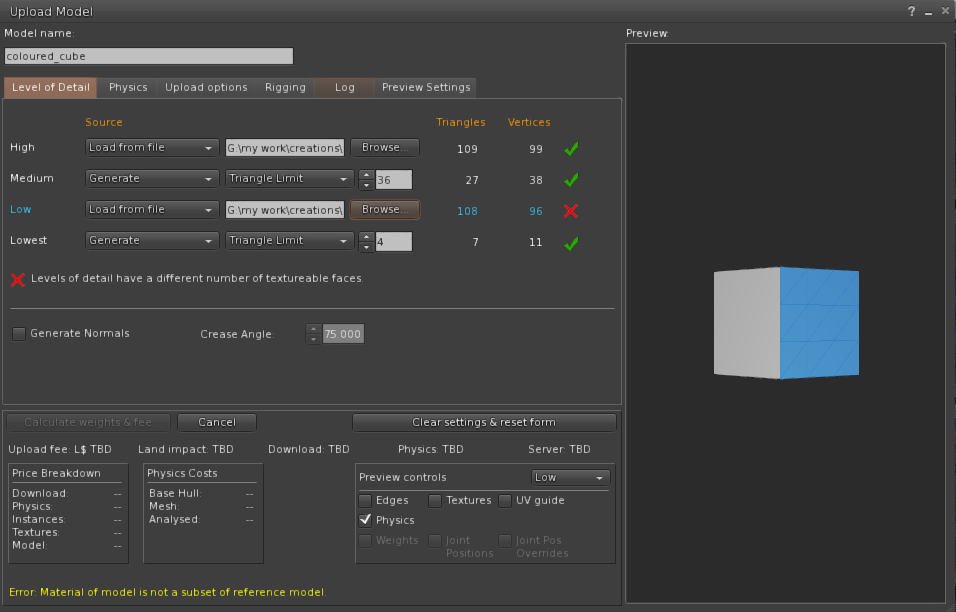
1) Materials subset handling and related errors

For a full, blow by blow account read the previous blog, but in summary, the way that mesh "texture faces" are handled has been rewritten to give you more freedom in how your meshes are organised.

As best I can tell, there has been a bug in the Mesh upload parser (the thing that reads your Collada files and prepares them for upload to SL/OpenSim), so in-grained was this bug that most of us never realised it was a bug. We have all become accustomed to having to place empty triangles in every LOD model to represent the full set of material faces. Given a Mesh "house" whose High LOD model uses 5 materials, "frontwall", "roof", "door", "carpet", wallpaper", we might remove all the geometry from the interior faces for the lower LODs as you would never see those from the outside. However, creating "house_LOD2", as the medium LOD model with only the exterior materials present would result in the error, "Material of Model is not a subset". We would grumble that this was a subset, but with no way around this problem, dutifully return to Blender and add 2 stray triangles and assign one of the "missing" textures to each.  This is painful, time-consuming and frustrating but most importantly it is very confusing for new creators. It also has a further serious side-effect. the LOWEST LOD model is notoriously over-priced in SL, by which I mean that the cost of each triangle in the LOWEST LOD is so high as to make it near impossible and at best time consuming to produce a good LOWEST LOD model. For example, a small hand tool which due to its small size will rapidly be reduced to LOWEST LOD, can typically have no more than around 20 triangles before it starts to seriously drive the Land impact up. If you have to give away a number of these precious triangles just to please the grumpy uploader trolls then you have already lost a large proportion of your allocation. 

Form the next Firestorm release this will no longer be the case. With the exception of the high LOD model all the other LOD models can now have any valid subset of the High LOD materials, they do not even have to be a subset of the immediate parent LOD. 
Thus you can have the following structure
8 faces in the high LOD - A,B,C,D,E,F,G,H
4 faces in the Medium    - B, E, G, H
2 faces in the Low           - A, C
& just 1 in the LOWEST  - F

Or any permutation of these. The only requirement is that the superset of all materials used in all LODs must be present in at least one triangle in the HIGH LOD.

2) Ready-to-use physics presets


The physics shape tab on the mesh uploader is generally not well understood. This is in part because it is a technically complex thing, in part because the viewer has not helped as much as it could. I can't do too much about the former, though I've written a number of blogs that try over the years, the latter part I can do more with.

As of the next Firestorm release, creators will find 3 new options when selecting a physics shape.
1) The cube.
2) The hexagonal cylinder.
3) the user-defined mesh.

There tend to be two sorts of people when it comes to defining physics shapes, those that do and those that don't. For some items it is barely worth worrying about, for others it is essential. However, given that in SL it is often hard to predict how an item might be used once it leaves your protective custody, it does no harm to make sure it has a minimal physics shape that is broadly aligned to the volume of the mesh.

Many people will select the "lowest LOD", often some unrepresentative triangle. This will upload, but it means that once the item is rezzed inworld people cannot interact properly with it. A much better option for many items is a simple cube, and a lot of us keep a simple 8 vertex cube on our drives for just this. You no longer need to do this. The hexagonal cylinder is intended for items that are not quite so "cuboid".

I toyed with providing something vaguely spherical but came to the conclusion that any shape I came up with would fail to meet some need. So instead I added the ability to provide a "user-defined" physics mesh. This is a way to have a shortcut to that "shape you always use". It can be configured in the Settings tab on the upload floater. 


Some items require a custom physics shape, walls with doors and windows that you wish to allow passage through, for example. No defaults are going to help much there, but let me know if there are things that you feel would help. 

3) Ambient lighting in the viewport.

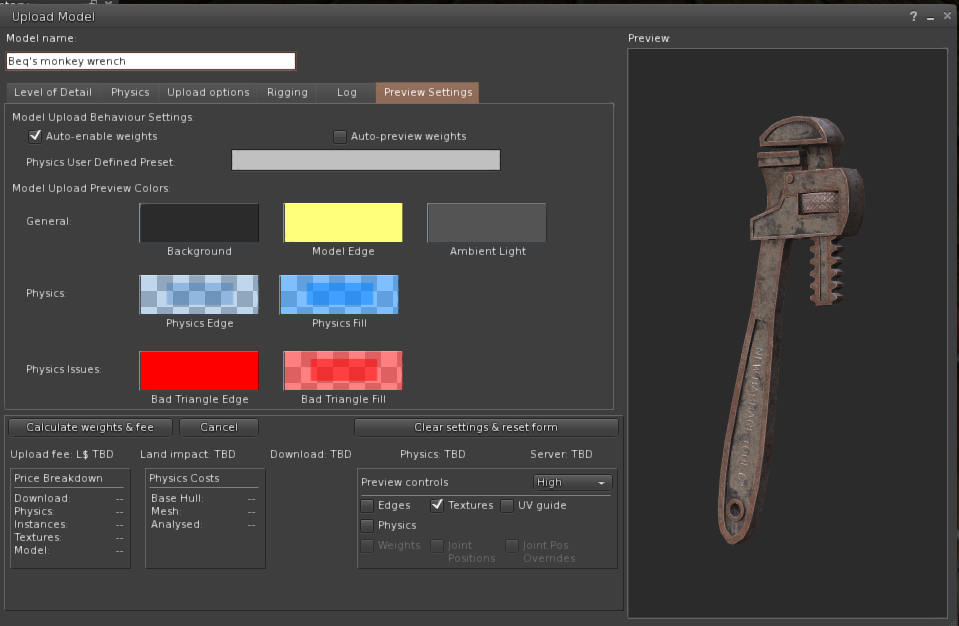
A couple of years ago, I changed the lighting in the preview window to make the three-point lighting work "better" but for some reason, things always remained dull and flat. Recently, it suddenly struck my partner Liz why this is. the ambient lighting is wrong. Upon investigation, it turned out that it was not just wrong it was "black". I have no exposed this setting on the "preview settings" tab so that you can change it, I have found a dark mid-grey about 33% grey works well and makes the lighting "pop" properly. It is especially useful when uploading with textures.

At the time of writing, there are two minor niggles that I may change before release. 
1) It still defaults to black. I considered this as a good plan but given that anyone upset by better lighting can change it to dullness again I think I will change the default to something sensible.
2) When you change the control the preview will not update until you either pan the model or reopen the uploader. I may not be able to fix this immediately.

I hope these three sets of changes improve the quality of the uploading experience for you as much as they have for me.

Take care.

Love Beq
X

Tuesday, 1 June 2021

Taming the mesh uploader - Improved workflow for builders coming to Firestorm soon

Introduction


Deep in the warren-like tunnels of the Second Life viewer code base lurk many beasts that hide in the shadows. One such beast that often shows itself at the most unexpected times pouncing upon poor unsuspecting builders, is known as the MOMINAS (Material Of Model Is Not A Subset).

TL;DR - enough with your silliness Beq, what's yer point? 

OK, the boring version. The next Firestorm should have my rewritten mesh validation that supports proper material subsets. You will no longer be forced to keep a "single triangle" placeholder cluttering up your LODs. Furthermore, two new error codes have been added to replace cases where past laziness has reused the same error code for very different issues.
Back to our tale...

The Tale Of The MOMINAS

It's a regular Friday evening at the builders' tavern, "The Prim and Proper", and many regulars are clustered around the small tables or slumped at the bar. All of a sudden, the door flies open, drawing mutterings about better door spells and smooth rotations from the occupants. A forlorn figure stumbles in from the foggy evening outside. Battered and bruised, their overalls torn and smeared with what everyone hopes is grease, the new arrival stumbles to the bar.

"Pint o' bane, please, Mal", mumbles a tired, somewhat subdued voice.  

A tankard of foaming beer slams onto the bar, accompanied by a loud chuckle.

"Blimey, someone's had a bad day of it. There ya go, get that down ya." Malcolm, the gentle giant of a Landlord at "the Prim" has seen it all in his time.

The newcomer mumbles a thank you and sips at the beer. A minute or so passes, the background babble of the pub returns to its normal levels. 

"All day! All bloody day...!" The outburst takes a number of customers by surprise and heads turn towards the newcomer again, who is staring, wild-eyed and unfocused across the bar, their arm protectively wrapped around their drink. "Fighting them, time and again, one after another. Every time I get rid of one of them, another leaps up in its place." A pause, a large gulp of beer and the newcomer turns, "MOMINAS!", they exclaim woefully, and a look of pity and recognition spreads across the assembled faces.

"They wasn't never meant to be, ya know." A cracked old voice, suggests as old Alex emerges from the shadows, ready to impart the acquired wisdom of his many years. Ignoring the questionable grammar, the newcomer turns to listen. "They's gotten too full of 'emselves ya see. Yer common or garden MOMINAS was only meant to tell you when you'd broken the laws of LOD, but they've been out o' control for years. Bad as dem MAVBLOCKs if you asks me. Prolly worse now since The Taming."

Mutterings of agreement, echo through the crowd. "Back in the day, the MOMINAS, was bred in the Lab, special-like, as a guardian to sniff out material errors in LODs that would corrupt your constructions. But "Material Of Model Is Not A Subset" to give the MOMINAS, its proper name, escaped the wards and cages of the Lab when Mesh was released and it went feral. Since then the MOMINAS has lurked in dark places, attacking lone builders without cause, spreading confusion, and worse....", the rheumy old eyes scanned the bar, flourishing his empty tankard, "... far worse...", he gave a little cough and smacked his lips, until a fresh tankard of frothing brew was thrust towards him by Malcolm. "Inefficiency!" He exploded, "it makes your stuff worse not better" the old man cackled, and a shocked hush spread,

"yes yes," he mused, toothlessly. "They was meant to make sure your LODs were aligned to the HIGH LOD. Even those first year's at the academy get taught the laws of LOD by rote; how every LOD must have exactly the same materials as the LOD above, but the laws is ... corrupted." A spray of spittle emphasises his disgust. He nods to himself and slurps his beer.

"Subsets, ya see, Sub Sets." stressing each syllable as if in the hope it would give it more meaning.  "It was meant to be that you only 'ad to 'ave a proper subset. If your house was built of Brick, Stone, Glass and Wood, then your LOD could use any mix of those, but not add Metal. A Medium LOD with no Glass should be fine. But oh no, no no no no no the MOMINAS had other ideas. and for years they's been forcing us all to think we had to have all the materials in every LOD. That ain't no subset! Any fool can see that." Banging his tankard down with a crash upon the bar as if to vanquish the monsters, the old man paused, looking slowly around as if to gauge his chances of gaining another free beer. But before he could try his luck, a voice spoke from the shadowy corner. 

"You're mostly right, old man.", said a woman's voice, its owner stepping out of the shadows. "but things are about to change." Whispers spread rapidly through the tavern, replaced just as quickly by an expectant hush."


Taming the MOMINAS

What you know is true. The laws of LOD are correct in saying that a lower LOD must use a subset of the materials used for the HIGH LOD, but it has been incorrectly enforced, probably since mesh was introduced. 
Every Mesh has a numbered list of "Material Faces" up to 8, and when a LOD is defined it must use the materials from that list. 
Thus a Cube with six materials, Red, Yellow, Cyan, Magenta, Blue and Green. Could have a MEDIUM LOD with only Red, Yellow, Green. But it cannot have Black, Yellow, Green because Black is not part of the original.  Therefore a proper valid subset of the Materials should be allowed.

However, the spells and enchantments that were woven to validate mesh (or code as some call it) is flawed and whether through the misunderstanding of the wizard that cast it, or a series of errors on their part, it enforces a full match rather than a subset.

This is bad for a couple of reasons. 
1) The underlying error code is misleading
2) Adding 6 redundant triangles to your LOWEST LOD is a costly waste of resources that limits your ability to make a good LOD model and can increase the land impact.

I have recently changed all of these flawed enchantments so that a proper subset is now supported. 
At a technical level, an empty placeholder is created for every unused material, allowing a proper subset to pass through all the validation checks unhindered by the MOMINAS guardians.

So what does this mean in practice?

If you are diligently creating your "Imposter" model for the LOWEST LOD, you will typically do that either on a dedicated material or using "Spare UV space" on another face. Historically this left you also having to have tiny triangles assigned to every other material from the HIGH LOD with these changes you now have complete freedom, so long as your LOD is a valid subset.

And there's more

Over the years, through laziness or lack of time, the MOMINAS guardian has been set to guard other, often completely unrelated problems. This has lead to a MOMINAS attack for errors that have nothing at all to do with Materials, subsets or otherwise. Other examples are:
1) No High LOD Model found - this generally indicates a more significant failure to read the Collada scrolls describing this mesh.
2) LOD model mismatch - this generally means that the matching spell, that attempts to associate parts of the LOD to the HIGH LOD, has failed to match (names are wrong, you specified the wrong scrolls etc)

These have been assigned two new guardians dedicated to their specific tasks.
Keep an eye out for other unwarranted attacks and report them to me. I can try to tame them.

How do we get these?

A new Firestorm viewer is expected to be released "soon". The QA testing period should begin soon and all being well, a release will follow that has these, and some other benefits which I'll explain over another tankard, another day.. 


Wednesday, 13 May 2020

Cleaning up your act - how a round trip through blender can improve your mesh


Those familiar with my blog may recall that our journey together through the art/accident of mesh making began with, and often returns to prim2mesh tools such as Mesh Studio (MS). During a period of particularly poor reliability from the Mesh Studio servers, in 2016, I made a blog post and video explaining how some of the optimisations achieved by Mesh Studio, could, with a little knowledge, be replicated in Blender.

That was a long time ago now, Blender has moved on and while MS remains perfectly adequate for many users, the loyal Mesh Studio user base has been challenged once again by instability and uncertainty. There is no suggestion that the product is anything other than the victim of circumstances ( and a pernicious bug) but it seems appropriate to update the "fallback plan" tutorial(s)

What are we going to learn today?

For this first "tutorial" we will look at the basics. After a quick reminder of what MS and similar tools do for us, we'll look at exporting to Blender, an initial cleanup, and then re-exporting.

What is a Prim2Mesh tool and why do I need it?

Let's have a quick recap on what it is that Mesh Studio and similar products do for us. Prim to mesh tools are typically used by builders/creators who wish to work inside Second Life, and/or who lack the skills required to create mesh in an external tool. They provide a convenient interim solution bridging the gap between the simple (but powerful) prim building in Second Life and the complex and frequently daunting Mesh creation tools such as Blender, Maya and 3DS Max. I will focus here on Mesh Studio but for the most part the same applies to similar products.

With Mesh Studio, the user is free to create their object using any prims that they like, this includes pretty-much any slices, twists and other tortures. Once the user has their model built (and ideally) textured, they simply drop in a script and use a menu-driven interface to analyse the prims and produce a mesh. The product is composed of two parts, an in-world scripted system that sends a detailed description of the linksets to an off-world server via a web  API. The Mesh itself is constructed on this external server and provided as a zip file containing the Collada (DAE) model ready to be uploaded into Second Life. Herein lies the Achilles heel of these solutions; any tool that depends on an external service is beholden to the operator of that service.

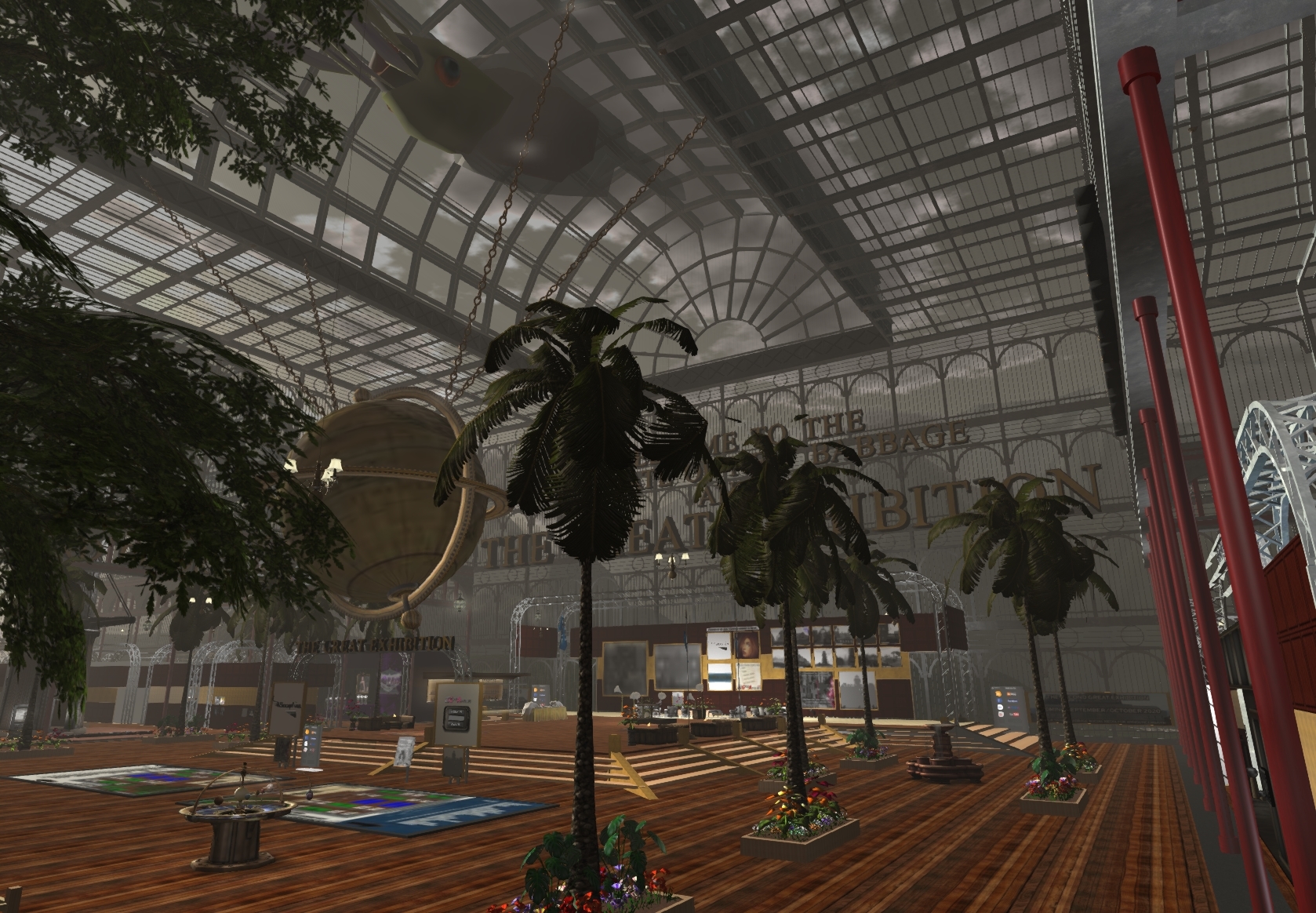
The menus and other scripts allow some pretty sophisticated constructions. In fact, the entire crystal palace exhibition glasshouse, a recreation of the original Hyde Park crystal palace from the late 19th Century, was created entirely using Mesh Studio by Vic Mornington, a long-term New Babbage resident and Mesh Studio connoisseur.

Full size : https://gyazo.com/fcfafb7cd350502aa75d009de632b913

The key features that Mesh to prim tools include are:-
1) some control over the mesh complexity (how many edges make up a curve or straight-edge
2) the elimination of unused mesh faces (transparent faces are not "meshed")
3) Simple mesh validation, checking that the number of materials used does not exceed the SL limit of 8
4) The merging of prims into one or more mesh units and elimination of some of the duplicate vertices.
5) The correct UV mapping to ensure that the resulting mesh can be textured the same way as the prim model.

The 2016 blog post linked above explains why this workflow is useful, it can be especially helpful when working on a project that needs to fit into a specific inworld scale and many creators use Secondlife tools to "prim-out" a rough model to use as a scale template.

So what do you do if the tools are not working?


You have your model, the deadline is approaching, you finish tweaking the textures and click on the menu....nothing...the server is down.

Blender and Firestorm to the rescue.

Blender is a free, open-source 3D creation tool. It stands squarely against many of the leading commercial packages that dominate the professional world and is increasingly making inroads into the commercial world of games and VFX. Blender has a reputation for being rather unfriendly to use,  personally, I think that this is overstated. All the big 3D desktop creation packages have complex user interfaces and no shortage of peculiarities, I tried learning any number of them in the past and found myself bemoaning the complexity and yearning for the solid ease of plugging prims together. The fact is that with power comes complexity. Someone used to Maya will swear it is the best, A 3DS Max aficionado will be equally convinced that their tool of choose is the best one. There is no single answer, pick one and stick with it. If you have no specific reason to pick one tool over another then Blender has two very significant points to consider. 1) It is free 2) It has a vast and ever growing ocean of tutorials and youtube channels. But don't choose blindly, if you have a friend or mentor who swears by another tool and you can afford that tool, then perhaps that is the better choice. The discussion that follows will not apply directly to those of you choosing a path other than Blender, but for the most part, the principles will remain the same.

What you should not listen to is all the moaning and whinging from people who used it in the past and failed.
1) They may not have failed because of Blender, in many cases it is simply the learning curve of moving away from the SL interface to something more complex.
2) They may not have tried a recent version of Blender (if they bemoan the mouse button selection, for example, nod politely and walk away - that has been configurable for many years and since last years revolutionary version 2.8 left-click select is the default).

Any tool is going to take practice and commitment. Pick one and commit. There are many excellent tutorials for Blender, prefer 2.8 ones over 2.7 at least until you know enough to work around the UI changes. Andrew Price's "Donut" tutorial series is as good a place as any to start. Look around SL for support groups for your chosen tool too.

And so onto the viewer... I will be using Firestorm because I am, of course, biased, but a number of other Third Party Viewers (TPVs) support the export of prims as Collada and the workflow should be very simple to translate to your chosen TPV if required. I will be using the Firestorm dialogues in my examples, but they will most likely have direct equivalents in other TPVs.

Please note: The Second Life viewer from Linden Lab does not have any export capability at present. Feel free to lobby your local Linden if this is important to you, Jiras are more effective than pitchforks.

SL-Blender roundtrip summary

The rest of this post is going to go into detail and the blogger platform is not ideal for formatting this so bear with me. I'll try to create a supporting video as I did before but I know many people prefer to read than watch, so I'm going to try to capture as much as I can in text as well.

It is probably worth re-stating our objective here. We are not looking to do anything advanced in terms of mesh creation, we are not going to bake textures, for example. Moreover, our objective is to retain (as far as possible) the UV layout (the texturing) that we established inworld. This simplified workflow is to enable people to export a prim model, "clean it up a little" and re-import it into Second Life/OpenSim with (hopefully) a lower Land Impact (LI), a workflow analogous to that of the Prim2Mesh tools.

Here is the high-level summary for the TL;DR crowd:-

I should note here that this is not the only workflow the steps can often be mixed up as best suits the purpose and things are often best taken iteratively. These techniques, however, should be sufficient to get you through most clean-up jobs.

Step by step overview

1) Grab Blender, I will be using 2.82. Download it here
2) Export the mesh from SL. I will be using Firestorm (of course), many other TPVs should work too.
3) Import the mesh into Blender.
4) Prepare the mesh for cleaning.
   a) Restore quads - establish some nice edge flow that will pay dividends later.
   b) Join the mesh - make sure our UVs are safe first though.
5) Cleaning.
   a) Remove doubles.
   b) Simplify the geometry -we'll look at a non-definitive selection of strategies.
6) Export again.

What won't we cover?

  • We will not cover, creating LOD models in this article, though I may hint at options. I will look at this in a future blog.
  • We will not examine UV editing, our objective is to leave those untouched
  • We will not look at physics objects. I have older blogs for that and future ones planned.


Step 1, download and install Blender.

Get the latest stable version from Blender.Org, at the time of writing this is version 2.82, though I am eagerly awaiting 2.83.

Step 2, grab your TPV of choice and export your prim model.

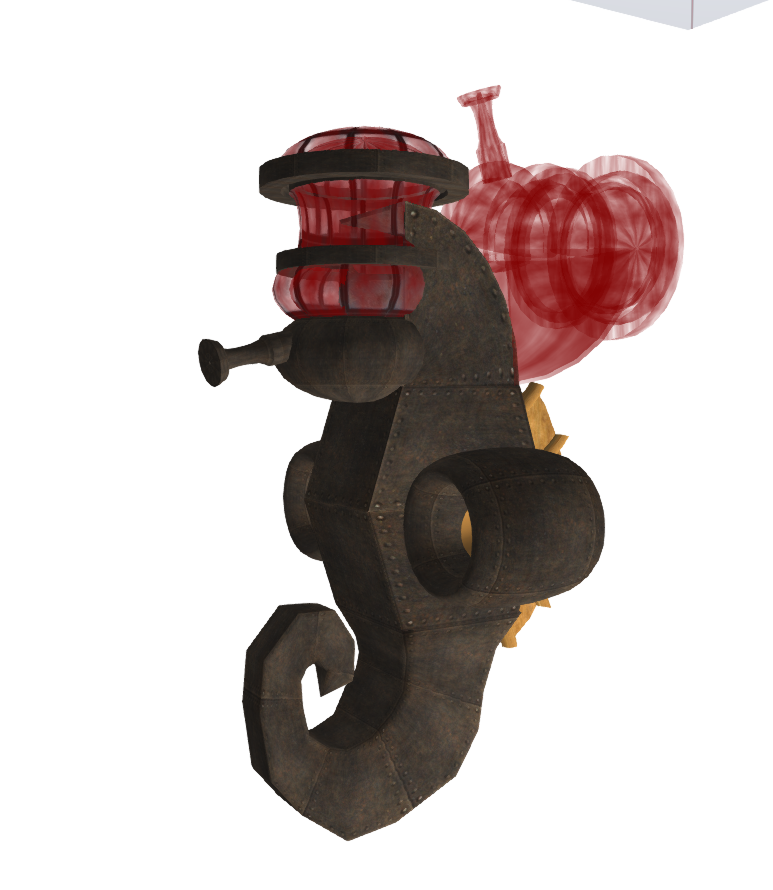
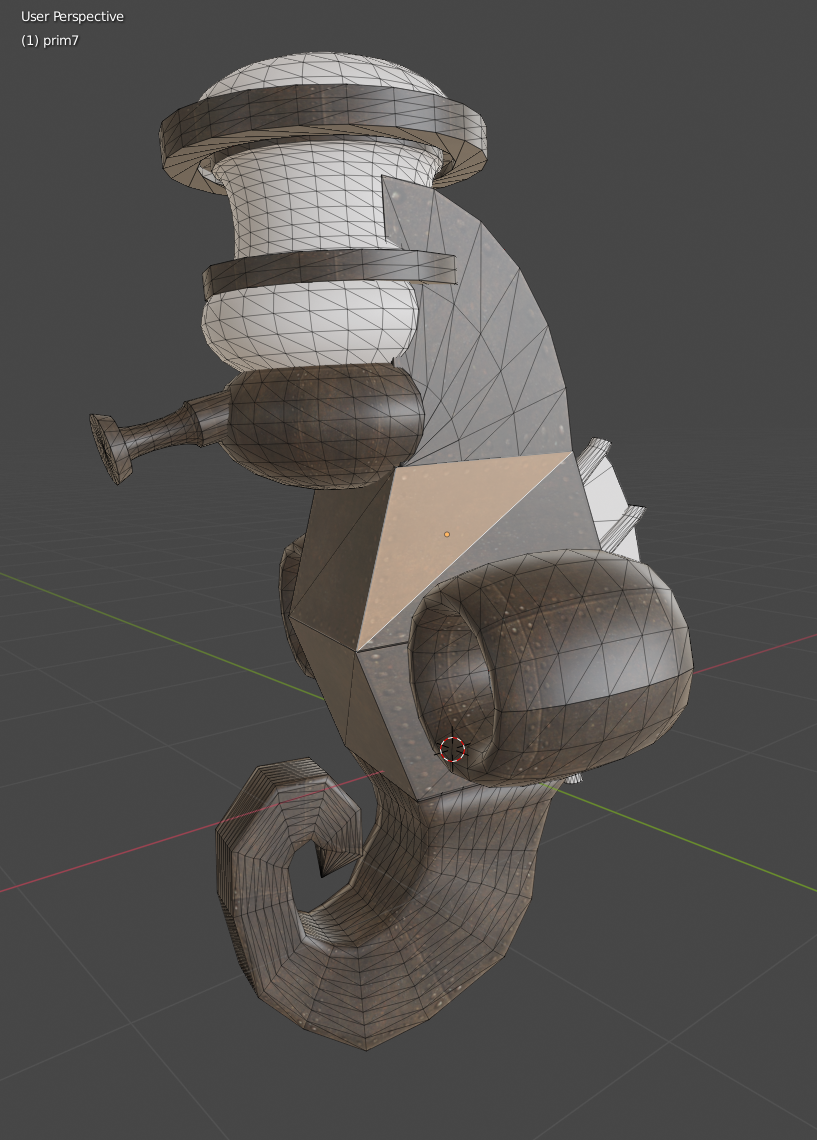
I am going to be using this old seahorse sub prim model, it comprises a number of useful features for our purposes, some transparent mesh, that we do not want to export, a few different textures and a couple of sculpted prims. It will pose a number of problems and has some rather awkward geometry to deal with.


Triaging the patient

Before we export it is worth taking some time to make sure things are as clean as possible.

I've deliberately picked a rather poor example, in the movie that accompanies this post you will get to see me trying to clean this up, applying the tricks I list here.

The model I am using is a steampunk seahorse submersible that I first built in around 2008. IT was never intended to be meshed, it has never been prepared for use with a prim2 mesh tool. For this exercise though we are simply going to export it clean it up. I

I have taken a few steps to clean up beforehand and I would strongly recommend the same to you. 

If there are prims that should "join" try to align them as close as you can. I will demonstrate how to fix cases where this has not happened, but as you will see it is easier if you do some work up front.

The model consists mostly of prims, the distinctive curved tail is a sculpty as is the exhaust array fin on the rear. The tail has some leftover vertices that we will also clean up in Blender. The top opens up using alpha-switching, which for a physical vehicle in 2008 was the only realistic means to get an opening submersible. With this test we are not going to open it up at all, so I have even set the interior to transparent where I can. this is no different to optimising your prim builds for Mesh Studio by removing the hidden faces.

We would quite like to export the textures, and we need the sculpts (the tail and brass fins on the back). Exporting the textures will be useful throughout the process, they will allow us to see when we take a wrong turn (the UV layouts get messed up); even if you are only using a "UV checkerboard" it will help you see when you need to take a step back and try a different option.)

Finally, before exporting I ensured that the rotation of the model was aligned to the axes.

Exporting

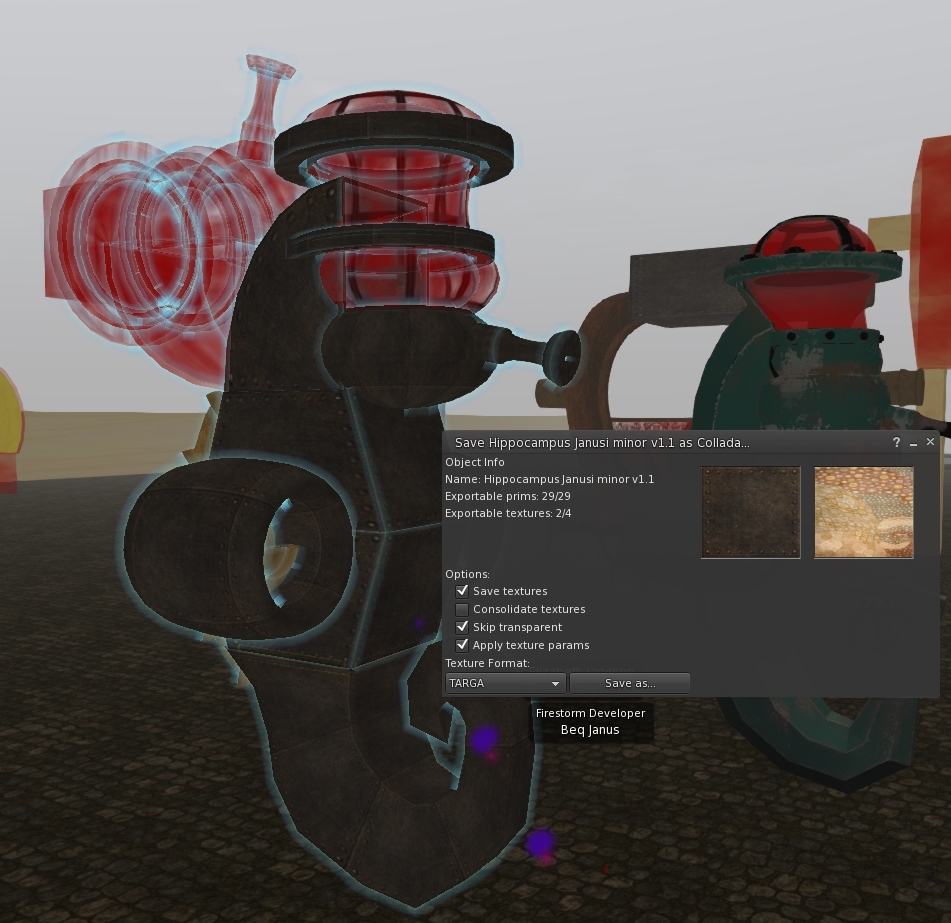
To export it we use the "save as..." menu, accessible by right-clicking on the object, if you have pie menus you will need to click more and more again to find the option. From "save as..." click "Collada".

You should be presented with a dialogue that looks a little like this.


In this case, we see that the object consists of 29 prims and that all of them are exportable. This is great news, in order to be exportable you have to be the creator of the prims and for sculpts you have to be the creator of the sculpt image that underlies the sculpty too. For the submersible, it is all mine.

The textures, however, we fail on 2 of them. They happen to be full perm, both taken from the Linden provided library I believe (the glass and the brass) but as I am not creator I cannot export them and those prim faces will be exported blank. If I wanted I could actually save these separately because the permissions allow it but they are not essential to our purpose here.

The options we pick are important.

  • Save textures - We would like to save textures where we can, this will allow us to see the textures when we import it into Blender later.
  • Consolidate textures - shown here "unchecked" but actually we want it checked. This will combine all the uses of the same texture into a single material in the export. Without this, every prim that has the rusty metal texture will get its own copy. This would be a real pain later.
  • Skip transparent - very important here, we do not want all the extra mesh that results from the hidden faces, by enabling this option we can avoid that. 
  • Apply texture params - this ensures that the texture repeats and rotations are preserved in the export, it ensures that the UV mapping is the same as you see inworld.

Finally, we can select our preferred format to save the texture images in, if you expect to work with the textures I would suggest sticking with Targa, it is a lossless format and while the source image has already undergone lossy compression, we do not need to add further artefacts at this stage.

Please note: that the export code pre-dates materials and as such all normal maps, spec maps and other materials settings are ignored completely.

Once we are happy we click "save as", give it a name, and save it to our local disk.

Something to remember, it is well worth taking a moment to ensure that your object is rotated to 0 degrees (or at least some whole number) I failed to remember that in my tests and I had to fiddle about cleaning that up in Blender.

And on to Blender....

Step 3 is to import it into Blender.

You will need only a few skills to follow this tutorial, but I am not going to try to include a beginners guide to Blender in this post. Please watch the first episode or so of the aforementioned Blender Guru Donut project. It will do a far better job of equipping you with basic Blender skills than I can.

With that out of the way, I'll assume that you can navigate in the 3d viewport, and find a few of the main menus, I will try my best not to assume much more than this.
Start with a new scene, delete the default cube if it is there.


Importing Collada is very easy, File->Import->Collada, locate the file on disk where you saved it. click "Import Collada" to import.

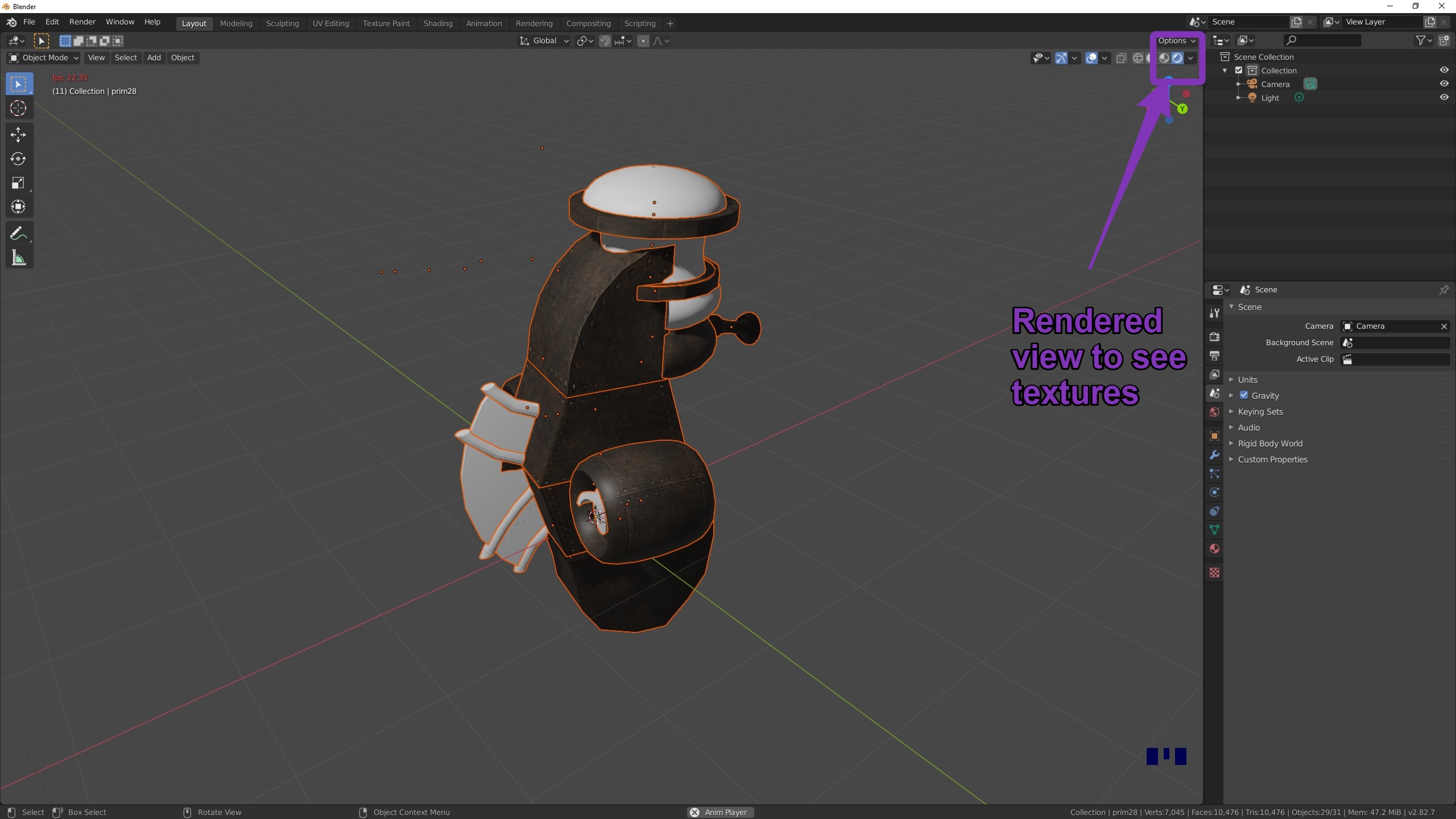
Your object(s) should appear in the viewport. Depending on how you have Blender setup following your "basic" tutorials you may well see your import mesh as entirely grey even if you exported the textures. To change this go to the top right of the 3d viewport and enable the rendered view. This will put you into the Eevee rendering engine and your textures should now be visible.


As you can see from my images, there is an acne rash of little orange dots. These are the centres of the individual prims. We will normalise these, along with the scale and rotation. so that everything is starting from a nice origin. (If you forgot to align your model before saving it, now is the time you'll repay that debt).

Applying the loc/rot/scale is easy. Press 'a' to select all the objects, then ctrl-a to apply transforms. You will be presented with a menu, you can select "all transforms" or a subset if you prefer. There will be no noticeable change to the model except that any "origin acne" will be cleaned up as all the objects now have their centre at the global origin.

Joined up thinking

The viewer export has saved every prim as a separate object. Sometimes this is useful, but most of the time it is not what we want. At some point, we will need to join some or all of the prims together. In my example I am happy for this to be a single mesh, it will have fewer than 8 texture faces in total and thus it will be suitable to upload as a single item.

Linking meshes is simple enough. Ensure that you are in Object mode (you should be by default, press TAB if not). "Object Mode" will be shown on the top left. Working in Object Mode is a bit like working at prim level in SL. We can select the objects we want to link together (pressing A will select them all), selected objects will have an orange outline. 

Once you have them selected hit ctrl-J (join).

Oh dear.... that was not what we wanted at all. We selected all the objects but as soon as we joined them all the UVs went bad. You can see this in the video, the blurring of the textures is an indication that all the UV data was lost.


The problem here is that we have more than one UV map, in fact, the exporter gave every object a uniquely named UV map. This may be considered a bug in the exporter. I would certainly entertain making this option in a future Firestorm release. However, for now, it is how it is.

Ctrl-Z will safely undo the damage, Undo is you friend in Blender, there are 30 levels of undo by default I typically increase that to 100 in the preferences.

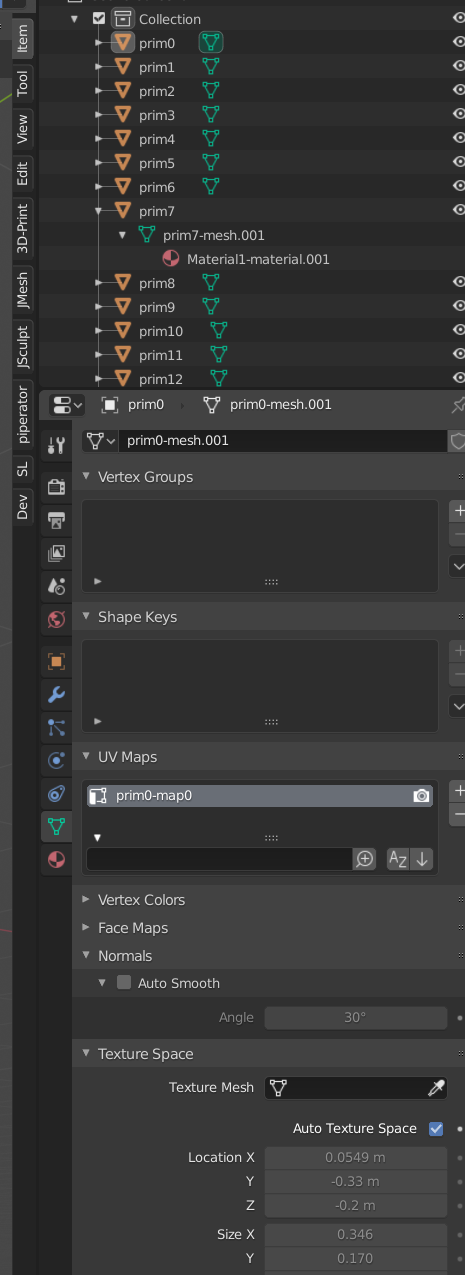
The next step is a bit of a pain, we need to go through each prim and rename the UV map to be the same as all the others, then when we join they will show as a single UV map..

The UVMap details are located in the mesh tab of the properties window on the right of the screen.
look for the green triangle with tiny circles at the points. Click in the box and rename the UVMaps from primN-map0 to something simple like combined-map or just map0

The important part is to ensure that all objects share the same map. Doing this for a large number of objects is a royal pain in the posterior, so I cheated...

(spoiler: I wrote some python to do this, but fear not, I will be releasing this as part of my free/open-source SL tools Addon SOON)


https://gyazo.com/b68fc5e0f349cde986f834105f1840df


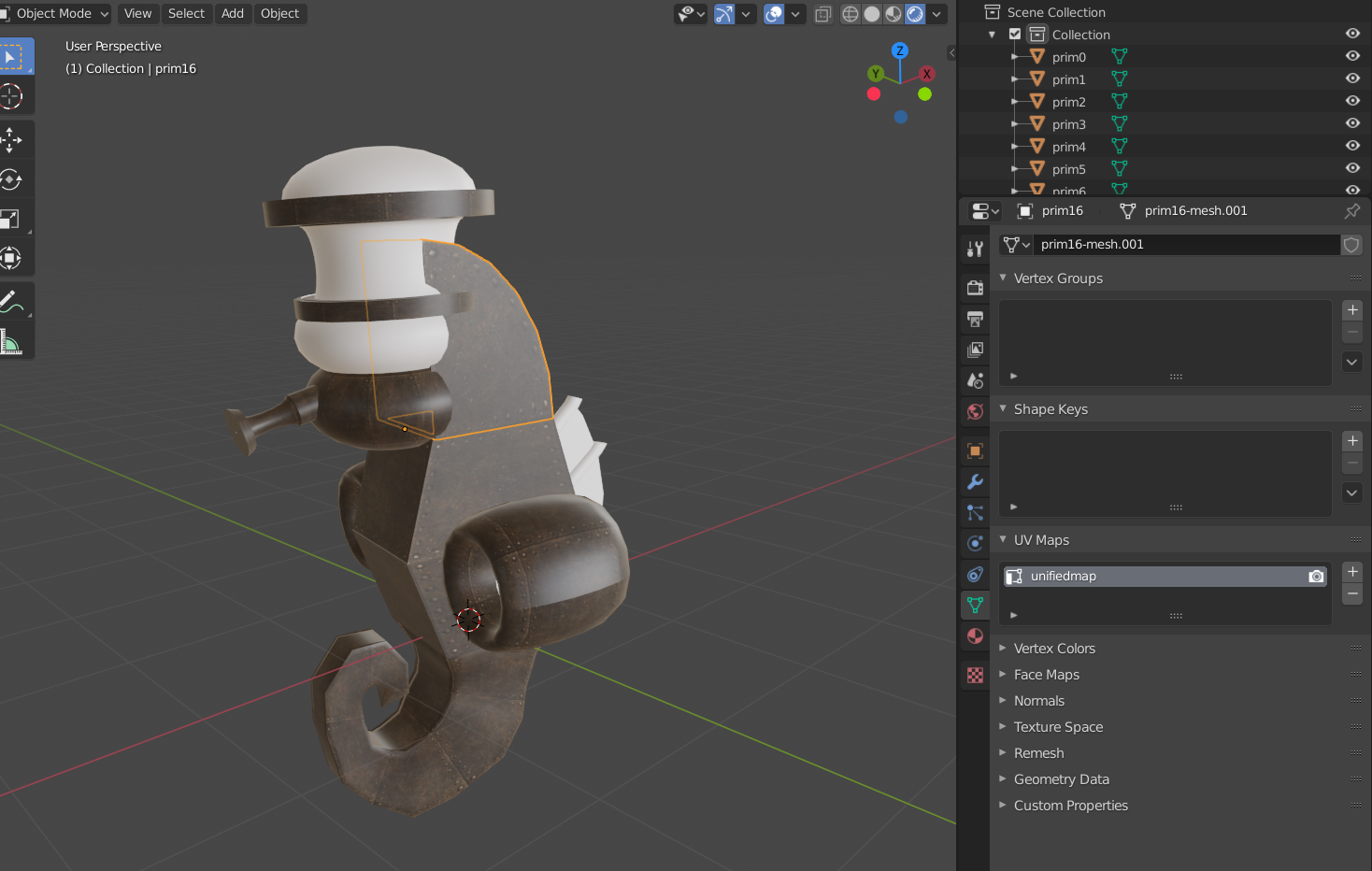
I have now updated all my UVmaps to share a "unifiedmap".

Now I can safely ctrl-J and all the meshes are joined as one and all the UV information has been retained. This gives us the combined single object mesh we see below.


Let's get cleaning


Press TAB to enter Edit mode. 

Tip #1: Convert to quads


The first thing we can see is that the mesh is made up of triangles. This should not be surprising, but it is inconvenient for editing and it breaks any "edge flow" and loops that we have. It is an unwritten rule of Mesh creation to work in Quads as much as possible.

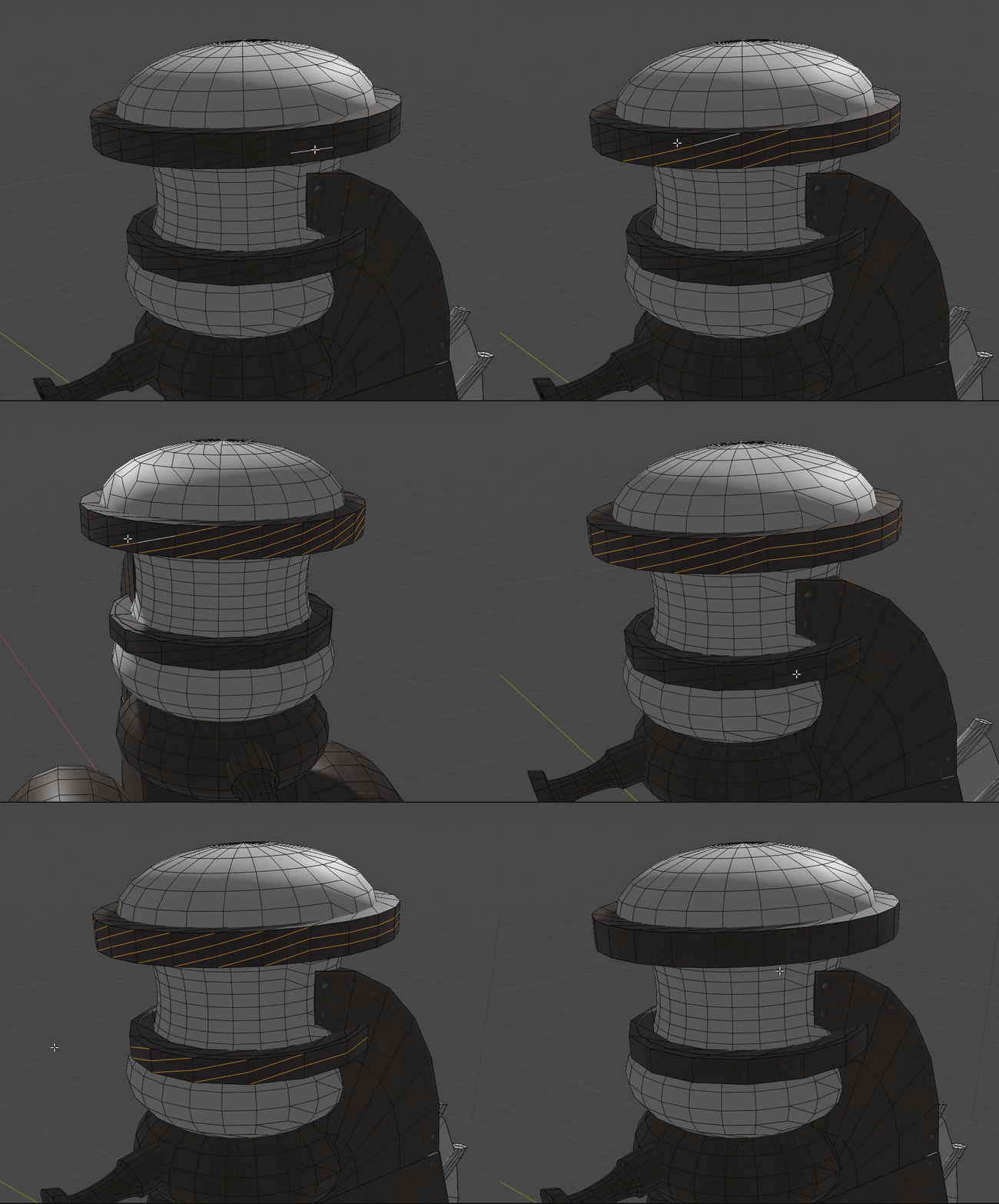
The following animation will show the benefits of having proper edge flow in the mesh by showing the selection of edge rings and loops before and after the removal of triangles. 

To remove the triangles we select all (A) and then press alt-J, this converts triangles to Quads where possible.


The quad conversion process can be complicated, it is not an exact process; the "tunable" setting on the quads converter can be used to control the angles that are used in the conversion. You can see how I use this to tweak the behaviour in the neck area.

It is not unusual for a few triangles to get left where you would have expected quads. We can clean these up using the "dissolve and join" trick we'll look at shortly

Our mesh is far cleaner to look at but we've not actually improved the geometry because we've left all the vertices in place.

Simplifying and refining

One of the tricks that Mesh Studio does for us is combining co-located vertices where possible. We can actually do a far better job in Blender as we have direct control. But for now, we'll just keep it simple. The objective here is not to rebuild/redesign this mesh, those skills we can work on later, we simply want to clean up this mesh and optimise, replicating where we can the functionality of our more familiar inworld tool.

Tip #2: Merging

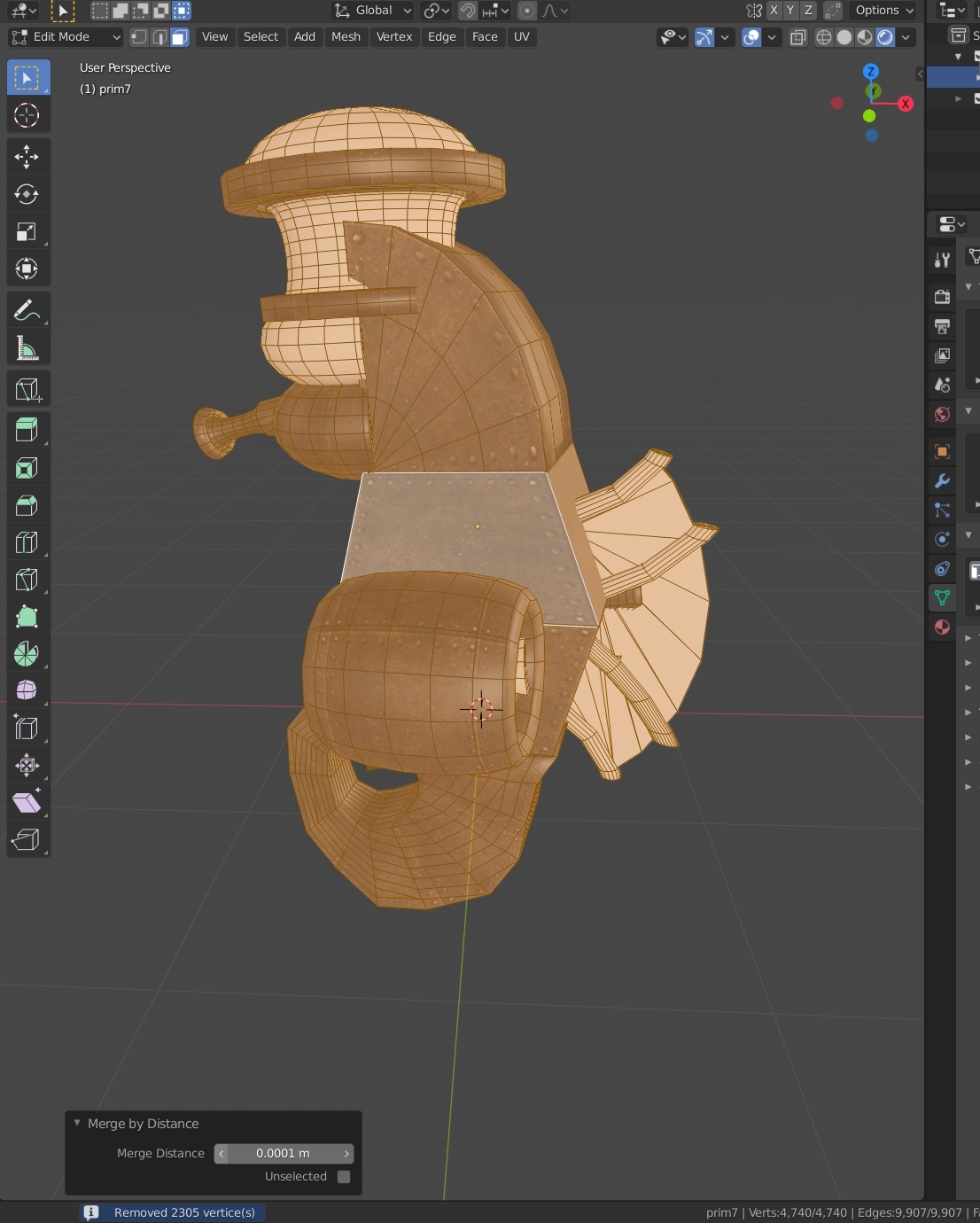
What do we want to merge? where prims were aligned next to one another in SL we want them to be physically joined. to do this we want to merge the vertices that are on top of one another. In Blender, we can select the whole mesh or just the parts we want to work on and then use alt-m to find the merge menu, and pick "merge by distance" this is the new and more logical name for what was called "remove doubles" in earlier versions of blender. When we merge by distance we can control how close vertices need to be in order to be merged.


  • Select some vertices
  • Alt-M "by distance"
  • Use the dialogue that appears to adjust the distance or press F9 to make it reappear.

The merge tool, as most are in Blender, is not fully applied until you commit the changes and move to another operation and thus it can be tweaked back and forth. Even after this, you have ctrl-z of course. I use undo a lot to test whether one operation works, then undo and try another.


Other merge options are equally useful. 
if you have two prims that you had wanted to join, but their vertices were not properly aligned then you can merge them manually. Select the vertex you wish to move and the one you wish to move it to, then Alt-M "merge at last", this merges all the selected vertices into the last vertex selected. Merge at first does the opposite, while "At center" while find the central point of the selected vertices and merge them there. Play with the various options to see which work best for you. 

Merge at cursor, is also powerful but is best used in conjunction with more advanced tricks that I will save for another post.

Getting more tricksy...

We've done the simple things, our precious UV layout is still in place, but look at the mesh, it is still more complex than it needs to be.

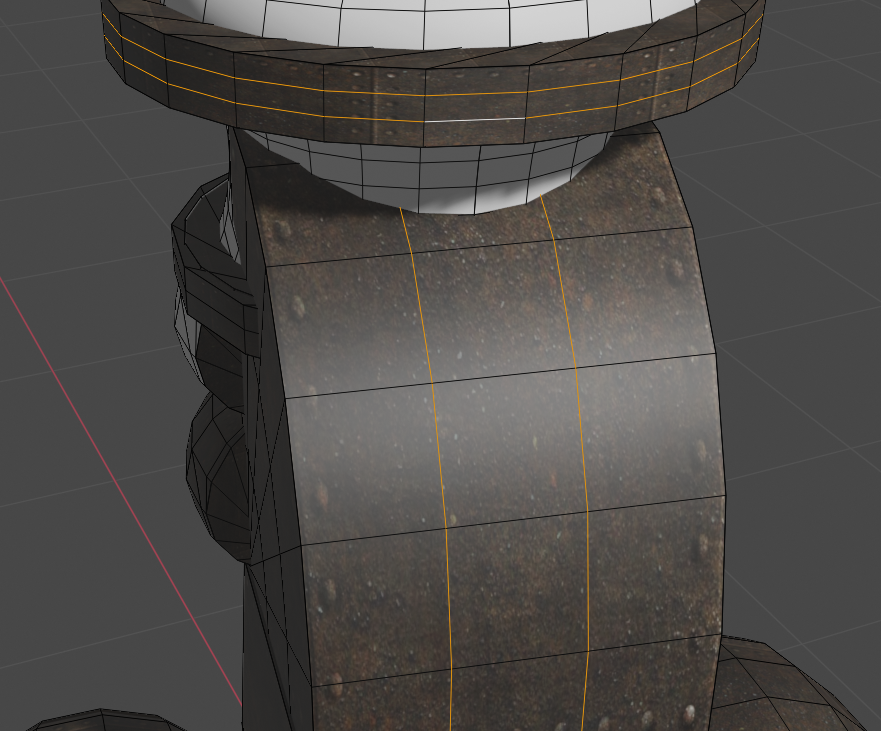
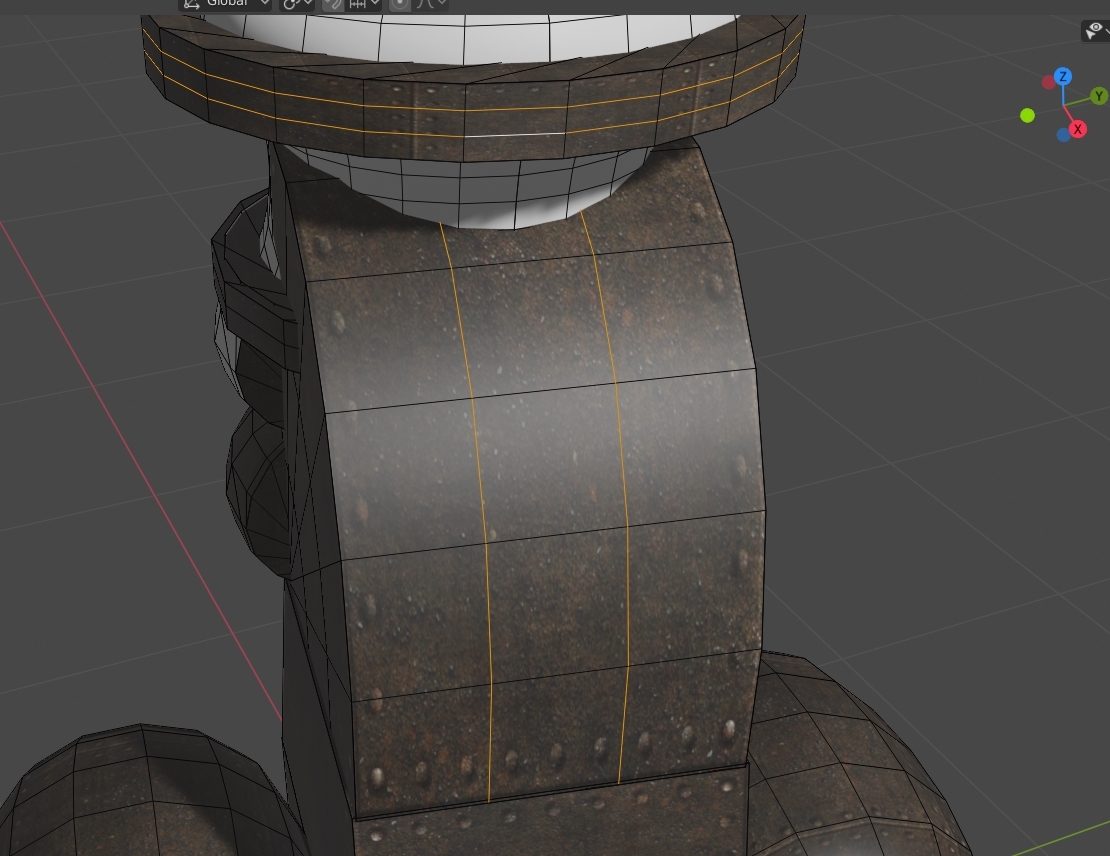
Second Life Prims have 4 vertices per straight edge, one at each end and two spaced along the edge. These do have an impact on surface lighting but are typically removed in mesh. This is most evident in the back of the "neck" of the seahorse


The edges (highlighted) are not needed and so we will remove them. There are (at least) two ways to do this, the first is the most simple but may also miss some opportunities that we, as humans, can spot.

Tip #3 : Limited dissolve

Limited dissolve is an awesome tool. It can help you in LOD production as well as the basic clean up. so what does it do? It traverses the mesh and examines the angles between edges if a given pair of edges have an intersection angle of less than the threshold then it will try to dissolve them. What we want to do here is the bare minimal dissolve, removing vertices that are on straight edges and add no real value to the mesh topolgy.

Select all of the parts that you want to clean. Probably this is everything, in which case, in edit mode, hit 'a' to select all. Next press 'x' to get the delete menu and select "limited dissolve". A small control panel should appear in the bottom left, inside this you can set the maximum angle beneath which you want to dissolve. Set this to 0.1. You should find that all extraneous geometry on flat faces has vanished. this may leave ngons (mesh "panels" with more than 4 sides) but don't worry this will be resolved later when we triangulate again. As we see in the video, that extra edges on the back of the neck are dissolved, but also the inner curves on the side of the neck, which when we triangulate later become a single triangle fan. In that case, I had 6 sides of a tube, there were 3 concentric rings of triangles as shown by the quads there beforehand. In total, 30 triangles. when we export this, it will be just the 6. That's not a bad result.

The following clip will show me performing this.


Tip #4 : Manual dissolving.

In edit mode: highlight the edges that you wish to remove.
note that now we have edge flow back we can use alt-shift-click to select the entire loop, be careful you have only selected what you need though.

Next press 'x' and from the menu that appears pick "dissolve edges"


Two points to note here. Firstly, dissolve only works when blender feels it is able to remove the edges and vertices without breaking the integrity of the model. If you cannot dissolve then there is probably a dependent vertex that is blocking you. Continue cleaning up and come back to this later it may have been freed up. Dealing with it otherwise is outside of the scope of this guide. Secondly, the quad conversion can go awry at times. We tried to minimise the problems using the sliders but often there are still places where the automation does something a little less than obvious. This is the time to fix those too.

I illustrate this in the following gif. This is a pretty extreme example, but one that can happen. The result here is nice clean quads.


Repeat this process across all the model until you feel you've removed all the unnecessary extras (this is why method 1 is preferred where possible - it saves a lot of time).

Patching and Repairing

We've gone a long way now to cleaning things up. I've used a particularly complicated model to test this with and for most simple items you may well be done at this point and can skip to the next step of re-exporting the DAE ready for Second Life. However, what if you have broken geometry that you'd like to clean up? Here's a few more tricks that might come in handy.

As always, this post is only scratching the surface of what you could do, and none of what I write here is necessarily the best way, it is certainly not the only way. With this in mind here are just a couple of final shortcuts and tricks that I use.

Tip #5 Hot key selection mode switching while editing.

In Blender, you can by default select one of vertices, edges or faces, in fact you can enable multiple at once but I find that confusing so I will not cover it here. As of Blender 2.8, you can quickly switch using the 1, 2 and 3 key on the top row (not the numpad as they control view).

Pressing 1 will let you select vertices, 2 for edges and 3 for faces.

Tip #6 : relinking vertices. 'f' for fill, is the best way to join

When you have two vertices and you wish to join them you can often highlight them both and press 'j' to join. but it does not always do what you want. You can quickly rebuild bad geometry by combining the dissolve edges, mode switching and filling tips.

Here you can see me cleaning up the results of a poor "limited dissolve" applied earlier using these few simple moves.

I iterate through the mesh, switching to vertex mode (1), selecting two vertices and joining them (f), then switching to edge mode (2), selecting the unwanted edge and dissolving it (x).


A few other tricks that are not essential but which I use a lot include:

Tip #7 Selecting things

I talk a lot about operations that act upon selections but how do we select?
In the gui there are many ways and I won't describe those in-depth, the icons and tools are mostly self-explanatory. box select, lasso select etc. I will instead focus on the keyboard short cuts and quick operations.


  1. Select all (a) - pressing 'a' selects all vertices/edges/faces depending on your selection mode. In object mode it selects all objects (this includes lights and cameras so use the outlined window in the top right is you want to select some specific items) 
  2. Deselect all (alt-a) - set the selection to nothing.
  3. Select linked vertices. (ctrl-L) select only the vertices that are linked in the same contiguous mesh as the selected vertices. e.g. if you have two cubes and join them, they are one object but they are not connected in the mesh highlighting the corner of one cube and hitting ctrl-l will select all the verts in that cube and leave the rest unselected. 
  4. Hide selection (h) - as the name suggests this makes the selected vertices and any edges connected to them vanish from view. Great for getting access to interiors.
  5. unhide hidden (alt-h) - brings back everything you previously hid. 

Tip #8 Iterate and save often

In the next section, I'll explain how to save and to export (two subtly different things). Save often, use the versioning I describe and don't be afraid to try things out. you can often go over the process a few times to continually improve the results.

Exporting our work.

Finally, we are ready to export so that we can return or work to Second Life.

Make sure that you leave edit mode and return to object mode. Like many 3d tools the changes made in edit mode in Blender are not "finalised" until you leave edit mode. to switch back we need only press tab.

We will save our work as a blend file first, an optional step but worth doing in case we want to make further changes once we see what this looks like in-world.

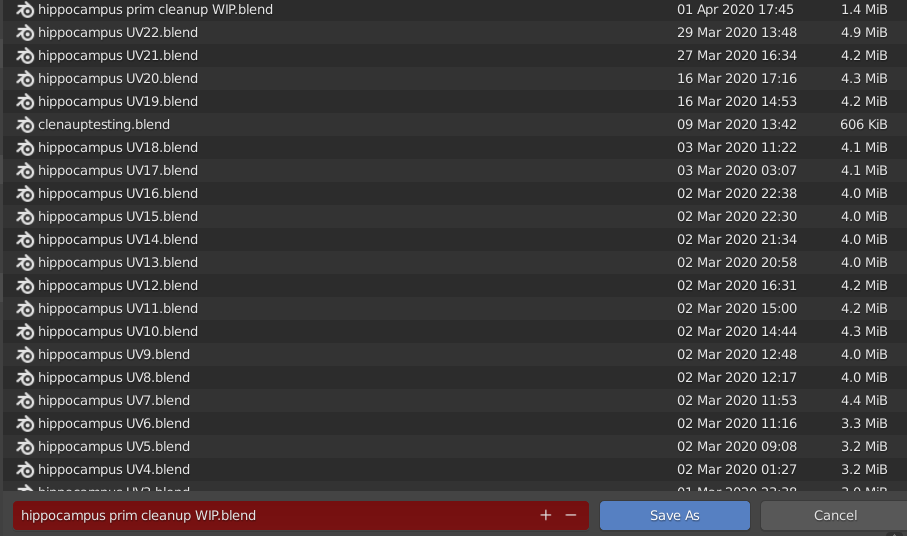
To do this go to the file menu at the top, and click save as ... (shift-ctrl-s is the short cut). You will be asked for a filename. One of my favourite "lesser known" features is that if you pick a name that already exists in the file selector, the field at the bottom will go red to warn that you are going to overwrite, there are two symbols a '+' and a '-' at the far right of the field, these will automatically add and increment (or decrement) a number in the filename allowing you to keep "versions" of your progress. I tend to use this all the time and end up with tens or hundreds of iterations that I clear up once I am finished.

This image shows that I am trying to save my prim cleanup work in progress. You can also see that I have 22 versions of another model (my fully blender-native recreation of this model as it happens) in the same folder. If I click the '+' it will save as 'hippocampus prim cleanup WIP1.blend".


Pick a filename and save your blend file.

Now we will export the Collada (DAE) file.

First, we will highlight just the mesh objects we wish to export.
If you joined things into a single mesh then click the object you need. If you left it in multiple parts then shift-click to select all the ones that you want.

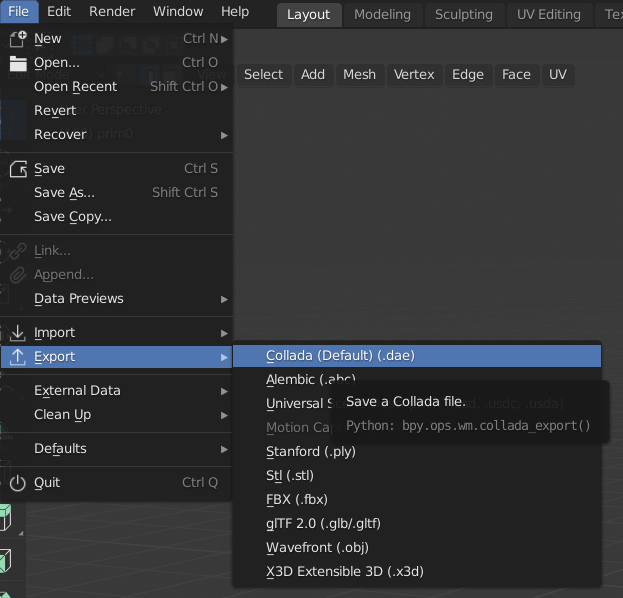
Next go to the file menu, export, Collada


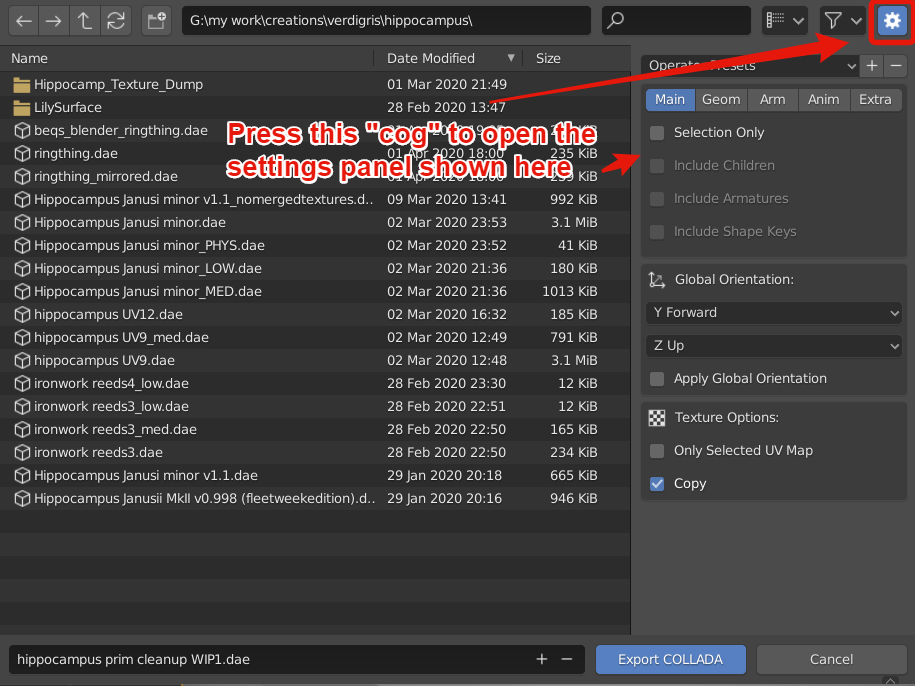
You will now be shown a file dialogue. It will default to the name we chose when we saved the .blend file. There will be an "Export COLLADA" button highlighted.

DON'T PRESS IT YET!

This is one aspect of the new Blender I don't like very much as it makes life harder for new users.
The defaults for Collada export are rarely what we need. To change the settings we have to press the "cog" to expand the settings on the right-hand side.


In this settings box, we need to enable selection only. But there is a preset available, so let's use that. Click the "Operator presets" and select "SL + Open Sim static".

If we do not do this, Blender will export all the objects in the scene including the lights and cameras, sometimes this is fine, but as you get into more complex objects it is worth getting into the habit of explicitly exporting only the parts that you want.

We can now press the "Export COLLADA" button. If things work properly you will see a small message pop up on the screen saying "Exported N objects" depending on how many objects you had selected. It is always worth keeping an eye on that, if it is not what you expected then something went wrong, double-check that you had "selection only" selected and that you had remembered to come out of edit mode.

And that's it, you can now upload as normal.

A few last notes

Don't forget that you may well have joined your objects. If you had prepared the linkset as if you were using Mesh Studio then you will presumably have limited your "mesh faces" to 8, if not then be careful to check that you only had at most 8 materials in your mesh or you will get one of the mysterious "MAV errors" or a "model not a subset..." type error in Second Life.

Most of what I have taught in this blog should be "non-destructive" with regard to UV layout. However, an over-zealous use of the dissolve tools will leave areas in a mess and I have not tried to explain how to dig yourself out of that hole. Try to keep things in rendered mode, so you can see the textures and the effect your changes have on them. 

This concludes what I think you'll agree was a far longer delve into the cleanup process than the 2016 one. The steps I show are I think quite straightforward, and hopefully, with a little practice, you'll learn not to fear the tools. What I have explained here can be translated into other tools such as Maya or 3DS Max. My weapon of choice is Blender and for me, it is the right tool for pretty much everything I need to do. The thing I want to say though is that no matter what tool you use if you are starting from a background of Second Life prim editing, they are all going to be daunting, they are all going to be hard, and you will struggle, stumble and fall at times. Start simple and build up from there, when you fail, pick yourself up, and try again. You'll get there. 

Love 

Beq
x


Monday, 9 March 2020

The evolution of a mechanical sea horse.

I don't sell things very often, there's a long story behind this which is not worthy of your time to read, but... I just made a new thing to sell!!

The all new "Baby seahorse" - the Hippocampus Janusii Minor.


The new creation is being launched at the Great Exhibition of New Babbage, a brilliant event that combines historical reconstruction in true steampunk style and a grand, sales event (in true Second Life style). You can visit the exhibition and see the "hippo" in all her glory by visiting the Verdigris stand


The new Baby will be available for the slashed price of L$299 at the event and includes future updates such as alternate colours, custom animations and a more detailed interior. The price after the event will return to the more normal L$600-ish price.

But is it really new?

Structurally this has been rebuilt completely, it is 100% custom mesh, with materials. It was the first full trial of my new (soon to be officially announced) SL addon for Blender. However, the concept is older and dates back to 2007/2008 when I first moved into my undersea home in the New Babbage ocean sim, the Vernian Sea.

The first Hippocampus submersible was a two or three-seater behemoth, a few months later, a baby version, a single person submersible appeared. The two models are shown here together in a photo from 2008, which finds me working on the engine of the larger beast, while the baby hangs on the hoist.


The original baby weighed in at 28 prims, with a sculpted tail and fins. It was later enhanced with two side propulsion pods.
The new model, I hope pays homage to the original design, but also serves to show how Second Life and my own content creation capabilities have evolved.

Watch this space for more news soon, I'm going to revise my 2016 tutorial on converting prims to mesh using Blender.

The great exhibition is open until April 1st, don't be an Aprils fool and miss it.

Love

Beq

x

Wednesday, 13 February 2019

Compression depression - Tales of the unexpected.

TL;DR

Today I learned that bilinear resampling beats bicubic sampling when reducing image resolution.
Try it now. Even better, see if it allows you to get the detail into a 512x512 that you previous clung on to a 1024x1024 for.

In the beginning...

It started with a dismissive giggle. A blog post from Wagner James Au over at NWN, made the somewhat surprising claim that a debug setting in Firestorm gave much higher resolution textures.

How To Display Extremely High-Res Textures In SL's Firestorm Viewer

"What a lot of nonsense" was my first reaction, after all, everyone knows that images are clamped at 1024 by the server, viewers can't bypass that, because believe me, if they could someone would have done so at some point. But I do try to keep an open mind on things and so along with Whirly Fizzle, the ever curious Firestorm QA goddess we tried to work out what was going on.

The claim

The claim (asserted by SL resident "Frenchbloke Vanmoer" and reported by Wagner) is that by playing with a debug setting in the viewer you can get much better upload results. We automatically get jittery when such claims are made, they are typically spurious and have bad side effects (I refer you to the horrible history of RenderVolumeLODFactor). The post, however, shows evidence from the story's originator; something was clearly happening, this warranted a far closer look.

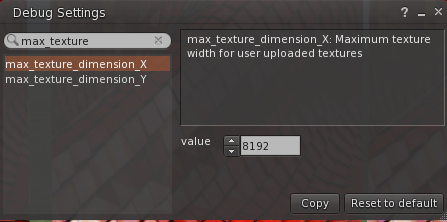
The setting in question is max_texture_dimension_X and Y


I show it here as 8192, as the blog suggests. But the clue to why this is not the true source of the improvement is that the default is 2048, not 1024 as you might expect.

Examining the evidence

It is still February so too early for April fool, but was the user deluding himself with local texture mode, seeing a high resolution that nobody else could see? Whirly did some experimental uploads and confirmed that in her view the user (Frenchbloke) was correct, there was a distinct improvement in the viewer texture if it was uploaded from the 8192x8192 source. How odd.

But again you have to be very careful with the science here. When you resize in photoshop, you then have to save the image. If you save as JPG then you leave your compressed image at the mercy of the jpeg compression and the quality settings used by photoshop. In effect, you lovingly craft a texture then crush the life out of it in jpeg compression, the uploader then decompresses it locally, before recompressing into the jpeg2000 format required by Second Life (losing more info in the process). The end result being worse than starting with a large source image and doing the compression one time in the uploader. Problem solved, that must be it, right?

Wrong. Testing with PNG, a lossless format, showed similar results. Resizing in Photoshop and saving lossless, then importing, was worse than letting the viewer do the resizing. No matter how devoted we might be to our Second Life we are not typically inclined to think that the viewer can be doing a better job than a more specialised tool, especially not when we are talking about the industry powerhouse photoshop, but the evidence was suggesting this.

So what does that setting do?


At best nothing at all, at worst very little. It has not explicit involvement in the quality of a texture.
The max_dimension parameter is used to test up front the size of an uploaded image and block anything "too large", but that is all. In fact, it is enforced in the interactive upload dialogue but it is not applied in the "batch upload" so with or without the debug setting it has always been possible to pass oversize images into the viewer and let the viewer "deal with it".Conventional wisdom, however, tells us that that cannot be the right thing, you are giving over control to the viewer.

The max_dimension setting lets you pick a larger file from disk, but the viewer still uploads at 1024 max.

ok, so the setting does more or less nothing, what on earth is going on?


Having ruled out the "double jeopardy" scenario by using a lossless input format, I walked through the upload process in a debugger, testing the theory that perhaps giving a large input resulted in the Kakadu image library that Firestorm and LL both use for handling images doing a better job at compressing than it might when given an already resized image. The theory is sound, more data on input must be a good thing, right?

Wrong. Well, wrong insofar as there is no extra data at that point. This is how the viewer image upload works...

  1. The user picks a file
  2. The file is loaded into memory
  3. It is forced to dimensions that are both a power of 2 and no greater than 1024.
  4. The preview is shown to the user.
  5. The user clicks upload
  6. The (already resized) image is compressed into jpeg 2000
  7. The result is uploaded.

So..another theory dies because by the end of step 3 we have lost the additional data because we've forcibly resized the image.

Perhaps we have a bug then? Do we think we resize but mess it up?


I examined the early stages of the above sequence, and sure enough, we get to step 3 and it takes your input image, in my case a photo that was about 3900x2800, and forcibly scales it down to 1024x1024. What was even more bizarre was that if the image was already 1024x1024 the code did not touch it (a good thing) which meant that the photoshop resized image was passing directly through to the upload stage in point 6 untainted.

OK... so what is this scaling we are doing? 


Perhaps the scaling that we do in the viewer is some advanced magic that gives better results for SecondLife type use cases and is part of some cunning image processing by Kakadu....

Wrong. Very wrong. Firstly, this is not a third party scaling algorithm, the code is in the viewer. and what is more, it is using a straightforward bilinear sampling.

Bi-linear? But that's crap, everyone knows that...Right?


Wrong. It turns out that whilst almost everyone has accepted the wisdom conveyed by Adobe (whose software states "Bicubic Sharpen - best for reduction", very few people have bothered to actually test this. A quick google search shows the conventional thought is deeply ingrained, but halfway down the results is a lone voice of opposition.

http://nickyguides.digital-digest.com/bilinear-vs-bicubic.htm

Nicky Page's post demonstrates quite clearly that bilinear sampling is a more effective reduction technique.

So prove it then.

Not one to take anyone's word at this stage I went back to the image that Whirly used, a red tiled roof.

I started with the same high-resolution image. I loaded it into photoshop (in this case I used the latest Photoshop CC 2019) and resized it first using the Adobe recommended bicubic-sharper. Then reverting back to the original, resized it using Photoshop's own bilinear algorithm. Both were saved out as Targa (TGA).

I then switched to Firestorm (using the latest build again) set the debug setting as per the original instruction and uploaded 3 textures

  1. The original texture, allowing the viewer to rescale it.
  2. The manually rescaled bicubic image.
  3. The manually rescaled bilinear image.
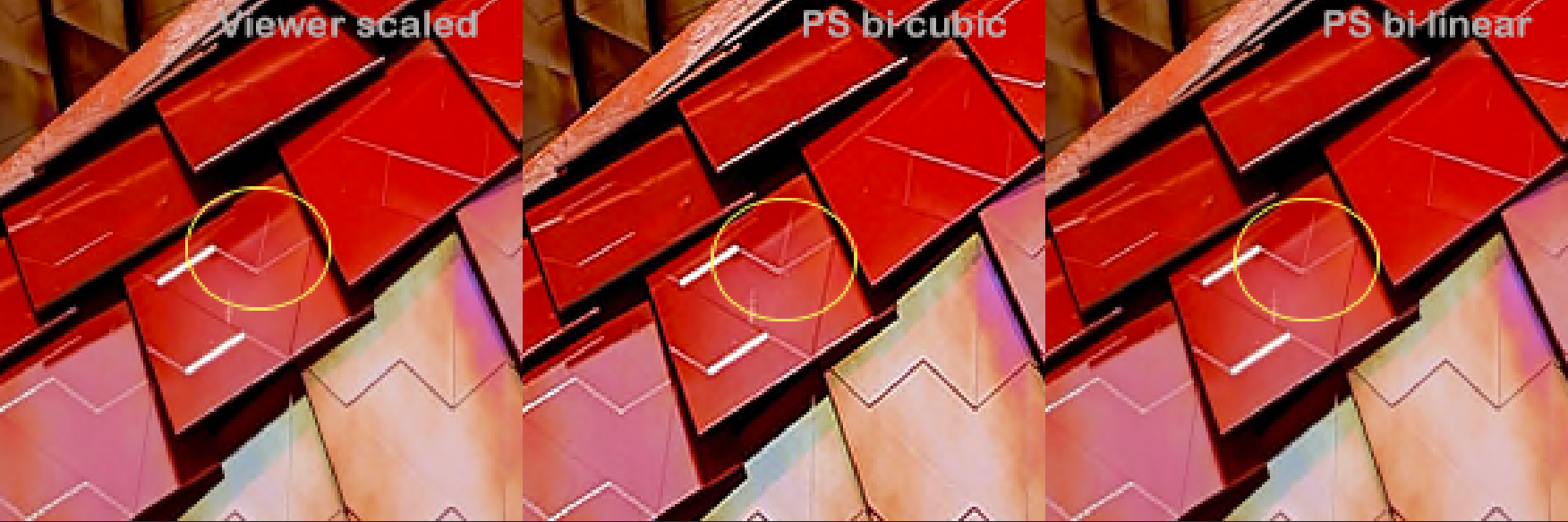
I then compared them inworld and sure enough, the quality of both 1 and 3 was near identical. The quality of 2, the bicubic, was noticeably lower. Click the image below to see the magnified comparison. (also available https://gyazo.com/14bb5cc13eb45d7124bd0dc1a7caacc0)


Is there a less subjective way to illustrate this?

Looking at complex images for areas of blur is not a very scientific approach. I downloaded each of the textures, saving them as lossless Targa (TGA) images.

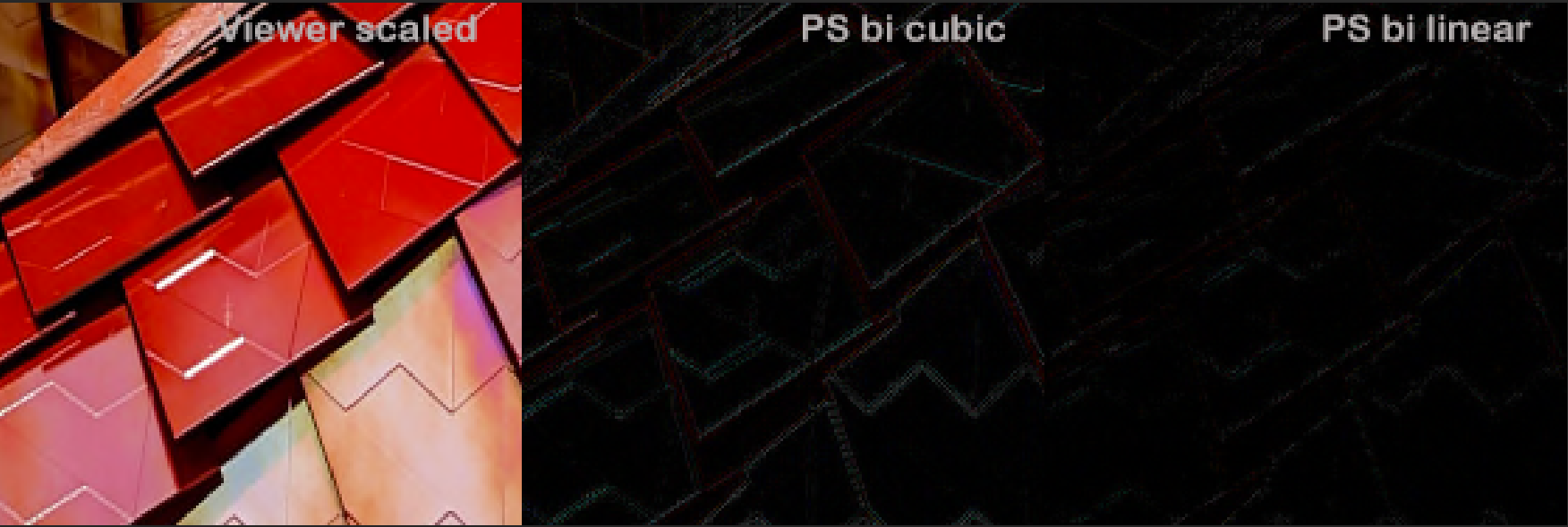
Loading all three back into photoshop I combined them as layers. Setting the relationship between the layers to subtract allowed me to show where the images differed.


As can be seen, the bi-cubic has a lot more artefacts than the two bilinears. Bi-linear resampling is the way to go it seems.

The observant among you will notice that the two bi-linears still have differences, so which is best?
They have both undergone the roundtrip through jpeg 2000 compression and when I applied the same test to the photoshop bilinear resampled image that had not been uploaded, they both showed very similar amounts of artefacts but in slightly different places. Which leaves the ultimate decision with the uploader I think.

So what have we learned?


Sometimes we learn things from the most unexpected sources. I owe a thank you to "Frenchbloke Vanmoer" for setting us on this path, and to Wagner James Au, for the post that brought this to my attention.

The key lesson here is you don't need debug settings to get better image quality. You need the right algorithm and from there it seems clear that bilinear resampling is the best way to go. A good reason not to use the debug setting is that by doing so you are limiting your improved textures to those that are 1024x1024. The same improvement can be gained for 512x512 and 256x256 if you do so in your photo editing tool of choice.

I hope this was a useful insight into not just how but why this effect is seen and a lesson to all that you should not always take advice at face value, but neither should you dismiss out of hand what seems cranky and illogical at first glance.

Take care

Beq
x

Another example

Friday, 7 December 2018

Easing the pain of importing Mesh.

A quick guide to the Mesh uploader changes in Firestorm 6.


But first a quick mention of the "other thing"

The big new thing in Firestorm 6 is, of course, Animated objects or "Animesh" which gives you the ability to take any rigged mesh item that you have modify permissions on and turn it into an animated independently moving item. You can read all about Animesh on the Linden Lab blog the regular places such as Inara and Nalates' blogs. Having spent quite a lot of time over the last few months looking at performance concerns around Animesh and tweaking some of the performance of rigged mesh in general, I am relatively happy that Animesh has an overhead not too much more than if that same mesh were being worn as clothing today. That is to say that a single animesh  of say 30,000 triangles will have an impact on your performance more or less equivalent to a 30,000 triangle dress or xmas sweater.


And now on to the main part of the blog...

A side-show to the main event of animated objects, nestling amongst the many fixes and tweaks since the last release, is my revamp of the Mesh Uploader. I teased some of the information on this previously but I'll now give a quick guide to the updates.

What's changed?

  • Cost breakdown, how the L$ charge is calculated
  • Physics details, the costs of the different types of physics (convex hull, prim)
  • Higher resolution preview image
  • Scalable preview window
  • Improved shading/lighting in the preview window
  • Correct highlighting of degenerate mesh
  • Improved error handling for physics models (avoid some of those MAV errors)
  • UV Guide overlay

Why?

So why change the uploader? Primarily because it is awful. A lot of creators struggle with the obscure and limited error handling, the postage stamp preview and poor rendering. The aim is to improve the tools, this is really the first step in what I hope will be a series of improvements both in the capability of the import tools but at least as importantly, in the feedback you get when things go wrong.

So what are these changes?

First of all, we'll look at additional information panels.
Taking the following object (an old prim building exported from SL)


Cost breakdown:

Ever wondered why that first upload cost you L$15 but the one after cost L$25? This information panel will at least tell you where that final number comes from.

The Download fee is derived from the streaming cost of the mesh, shown as "Download" in the standard Land Impact stats.
The Physics fee relates to the cost of the physics model. It is worth noting that the Convex Hull (Base Hull) is free, while a User supplied physics is charged based on its complexity whether it is mesh or analysed (more on that later).
The Instances fee is L$1 per mesh "prim" in the linkset. As can be seen this build has 70 separate meshes in a single model. 
The Textures fee is the standard L$10 fee per texture upload and is only added when the "inlcude textures" box is ticked on the "upload options" tab.
Finally, the Model fee, is normally L$10, the core upload fee irrespective of the complexity of the scene. It may be possible for this to be more in a multi-model DAE but I have not had a chance to test one.

Physics breakdown:

Personally, I think this is the more valuable of the two new panels. It has always been guesswork as to what the inworld physics cost will be if you use anything other than the default convex hull. 
This panel shows you the possible physics costs. There are 3 values shown but typically only two of these will have a value at any given time.
Base Hull: I should probably rename this to Convex Hull to correspond to the inworld name. The Base hull is the default physics shape, every mesh has one of these, in fact, if the uploader is unable to calculate a credible "base hull" you will get a dreaded "MAV block missing error".
This cost is the one traditionally shown in the LI summary because it is the default state of a newly uploaded mesh. However, if you provided your own physics shape, then inworld you can set the physics shape to the equally confusing "Prim". The next two values are related to the "Prim" physics

Mesh: User Mesh physics, this is the value is you have provided a Mesh model and not used the Havok Analyse function. It can sometimes be cheaper than the analysed equivalent but as all regular readers of this blog will know, it can vary with scale. The cost shown assumes the scale as uploaded.

Analysed: If your user-specified MEsh is analysed (and optionally simplified) using the Havok tools then when the fee is calculated it is based not on the original Mesh model but instead on the number of hulls. Using this new info panel you can, therefore, check the non-analysed physics cost and then examine the analysed costs and decide which you prefer before you upload. 

Moving on from the info panels, we'll look at the most obvious visual change, the preview panel itself.

The preview panel:

There have been a number of alterations to this panel. Firstly I have changed the Colour scheme to be more aligned with the inworld editing, yellow highlight for the edges, with translucent blue for physics. these can be overridden in the depths of the debug settings if you really want.

The next change is my favourite, the scalable preview window. The rearranged upload "floater" is already giving you a larger preview are, but depending on your screen size you can now grab the lower right corner and scale it out to as large as you wish. This comes in really handy for identifying those pesky degenerate triangles in your physics mesh. Alongside the increased physical size I have also increased the resolution of the preview giving a less jagged feel to the render. 

A more subtle change is the lighting of the model. The preview window always had very deep dark shadows and investigation showed that this was not actually the intended behaviour but that the 3 point lighting implementation was broken. I have made a quick fix that improves the general lighting but I have future plans to do more with this.

In addition to the existing edges and textures options, I have introduced a new "UV Guide". This displays a simple checkerboard pattern over the mesh and is useful for ensuring that you exported the right UV map before you get inworld. It is possible to add your own UV Guide and in a future release, I hope to make that directly editable from the preferences.

The final visual change was to fix an annoying bug that has meant that the intended "helpful" diagnostic display to highlight the presence of degenerate (i.e. long thin) triangles was more or less indistinguishable from the build. These errors in the physics mesh which were previously highlighted with tiny black lines marginally thicker than the mesh display are now highlighted clearly in bright red.

The following animation shows a quick overview of the new preview window


Finally, at least for this "overview", I have attempted to improve the error handling workflow.

Improved Error Handling:

Anyone who has spent any time uploading Mesh or helping others to do so will have suffered the pain of the obscure and often misleading errors. In this refresh I have tried to ease the pain a little, there's still some way to go I'm afraid but I hope that this start will save people some of the worst of the shortcomings of the old uploader.

Intercepting MAV errors....wait, rewind .. What is a MAV error?

MAV stands for Mesh Asset Validation (or something close) it is the process that occurs when you click the calculate weights button before the server decides on the costs. A MAV error is, therefore, one of a number of "fatal" errors that prevent the mesh being considered as well-formed and given a set of costs and weights. The annoyance factor of these is two-fold, firstly you have to click the button and wait for the response from the server, and secondly, you have to decipher the meaning of the error message. These MAV errors also commit the cardinal sin of error handling "Please look in the log for more information", if you've ever tried to look in a viewer log file and work out what went on you have my pity. 

MAV Errors then and now

There are four main MAV errors that I can think of:-
MAV error block missing: I referred to this earlier, and it can occur for a number of reasons, unfortunately, and because of this, for now at least, I have not trapped this one. The "block missing" means that part of the Mesh data structure was not present when it reached the server. This is purely a technical fault and of no use whatsoever to the user, so what causes this? The Mesh data upload structure has a number of mandatory "blocks" these include the LOD data, a convex hull etc. The most common (in my experience) occurrence of  "Missing block" is when the mesh is so poorly optimised that the convex hull creation failed. another cause is, once again, overly complex mesh that causes the LOD generation library (GLOD) to fail to produce an adequate simplified LOD.  There may well be others.

MAV error: Degenerate Triangles: (Now trapped) Traditionally this has been reported when your user-defined mesh physics shape is too complicated and in particular it has one or more long thin triangles. These are an error because they cause significant issues for the physics engine. As mentioned above I now highlight these in bright red, and this occurs as soon as the user mesh is specified. along with this the calculate button is deactivated (you would only get a MAV error so I am saving you from yourself) and a red error message explaining the issue is shown.

MAV error: Some hulls exceed vertex limit: (Now trapped) In the past your mesh was sent off for evaluation but I now perform this in the preview itself. Hulls are a simple convex shape made up of at most 256 vertices. If the analysis produced more complex hulls then this cannot be stored in the mesh data structure and is a fatal error to the uploader. This is now trapped and flagged as an error, the calc/upload button disabled and a suggestion of how you might fix the issue provided with the error.

MAV error: Too many hulls: (Now trapped) In the past, you would get a MAV error if your analysed results gave more than 256 hulls for any single instance (aka mesh unit) in the model. Once again this is a technical limitation imposed by the system and it prevents the model being uploadable. This is trapped and provides a suitable error and a suggestion of how to fix the problem. As you might expect by now, the calc/upload button will be disabled.

That's all folks

That about rounds up this Blog and the uploader changes. As I have said a few times above, this is the first stage of what I hope will be a more complete revision. If this is well-received I will look at the feasibility of contributing this back to the Linden Lab viewer so that everyone (not just Firestorm users) can take advantage of it. The Mesh Uploader is a complex and fickle beast and while I have tried to cover many areas and check for loopholes there is a chance I missed some. I have also deliberately neglected the rigged mesh tools a little, both to focus the changes and to not mix up any issues with uploader changes with Animesh.

Love 

Beq
x